Claude Desktop Manual Setup Guide
This guide uses Claude Desktop for Windows to connect to CCTQ through the in-app third-party inference settings. Open Claude Desktop and prepare your own token key.
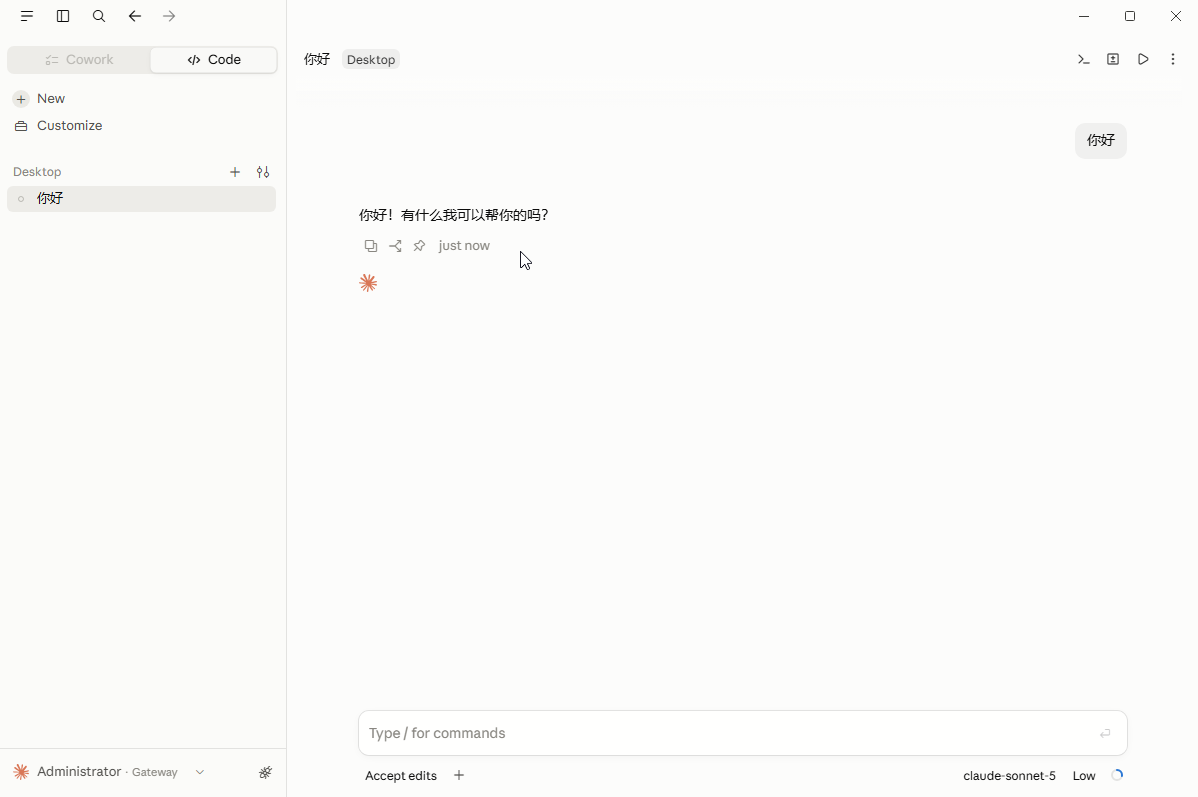
Use Code mode
After setup, switch to Code. Do not use Cowork mode for this tutorial.
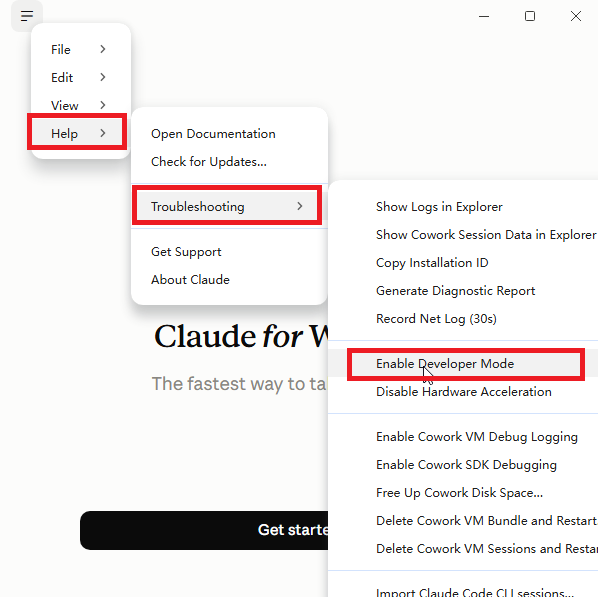
1. Enable developer mode
Open the top-left menu and select Help → Troubleshooting → Enable Developer Mode.
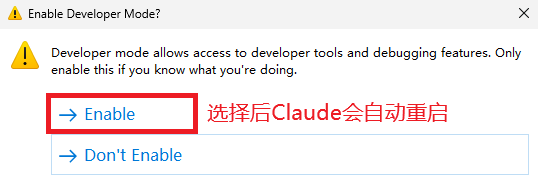
Click Enable in the confirmation window. Claude will restart automatically.
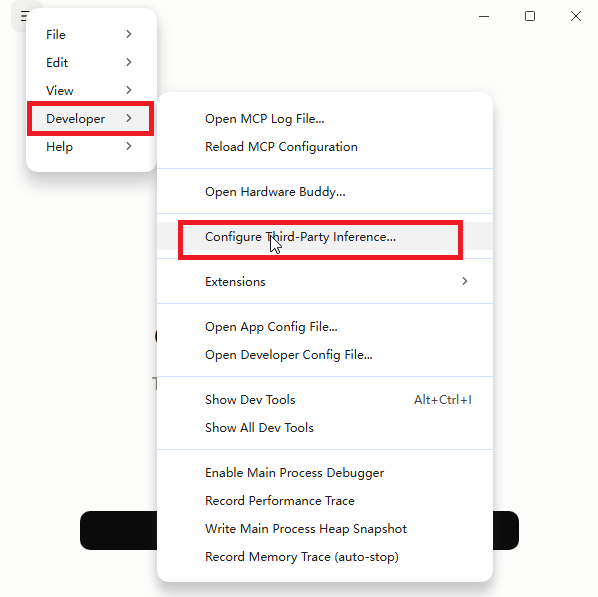
2. Open third-party inference settings
After restarting, open the top-left menu again and select Developer → Configure Third-Party Inference….
3. Configure and apply the gateway settings
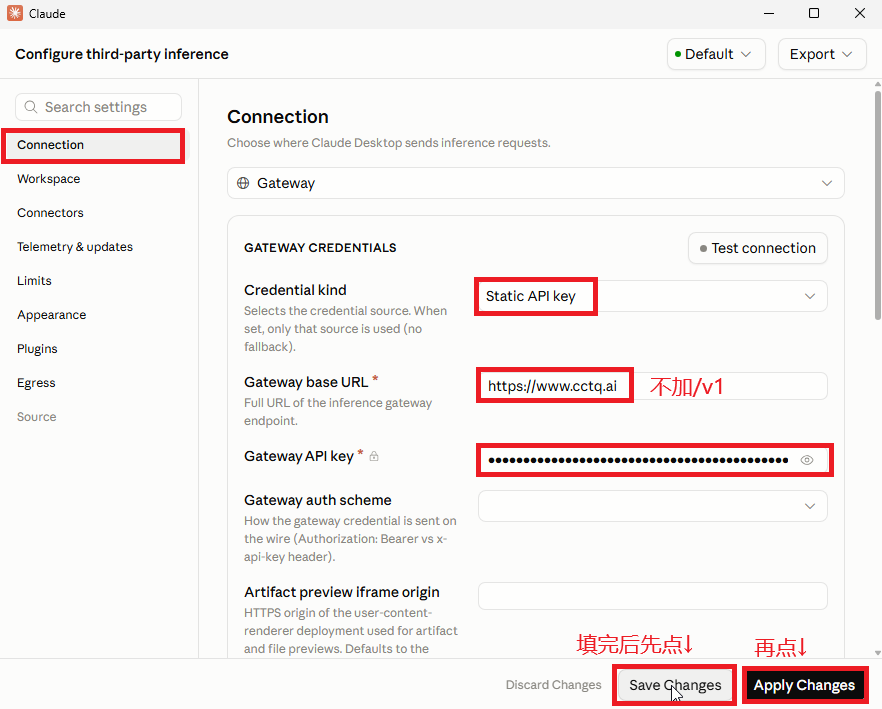
Select Connection in the sidebar and enter:
| Setting | Value |
|---|---|
| Connection type | Gateway |
| Credential kind | Static API key |
| Gateway base URL | https://www.cctq.ai, without /v1 |
| Gateway API key | Your own token key created on CCTQ |
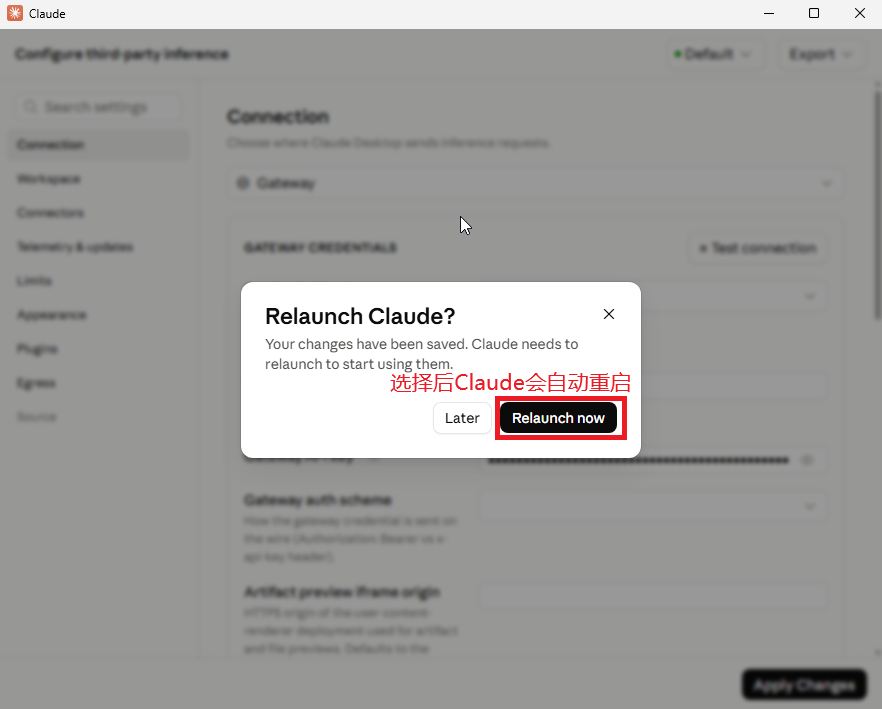
Click Save Changes, then Apply Changes.
When prompted, click Relaunch now.
4. Switch to Code mode
After restarting, click the Code tab in the top-left. Use Code, not Cowork, for this setup.
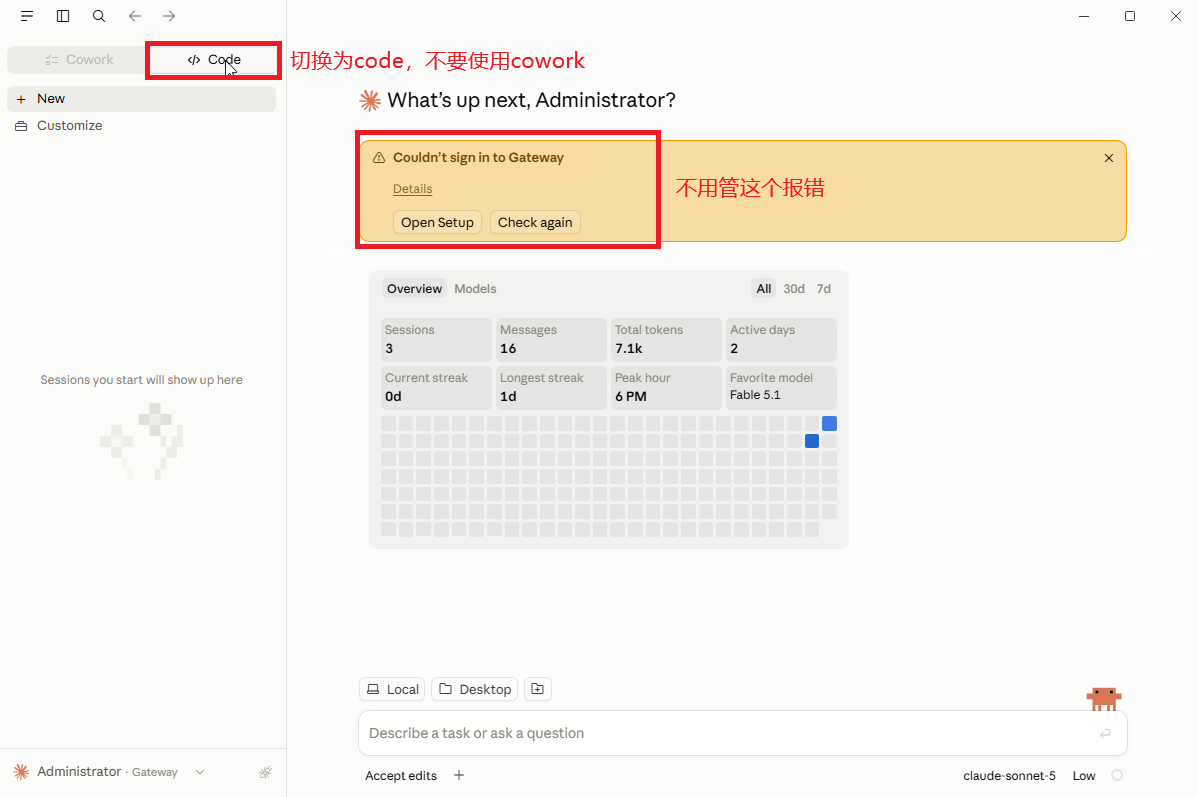
5. Send a test message
Click New to start a session, select the model you want, and send a simple message such as Hello. A normal reply confirms that basic setup is working.