Codex Setup Guide
TIP
For downloading and installing CC Switch, see CC-Switch Setup.
1. Add a provider
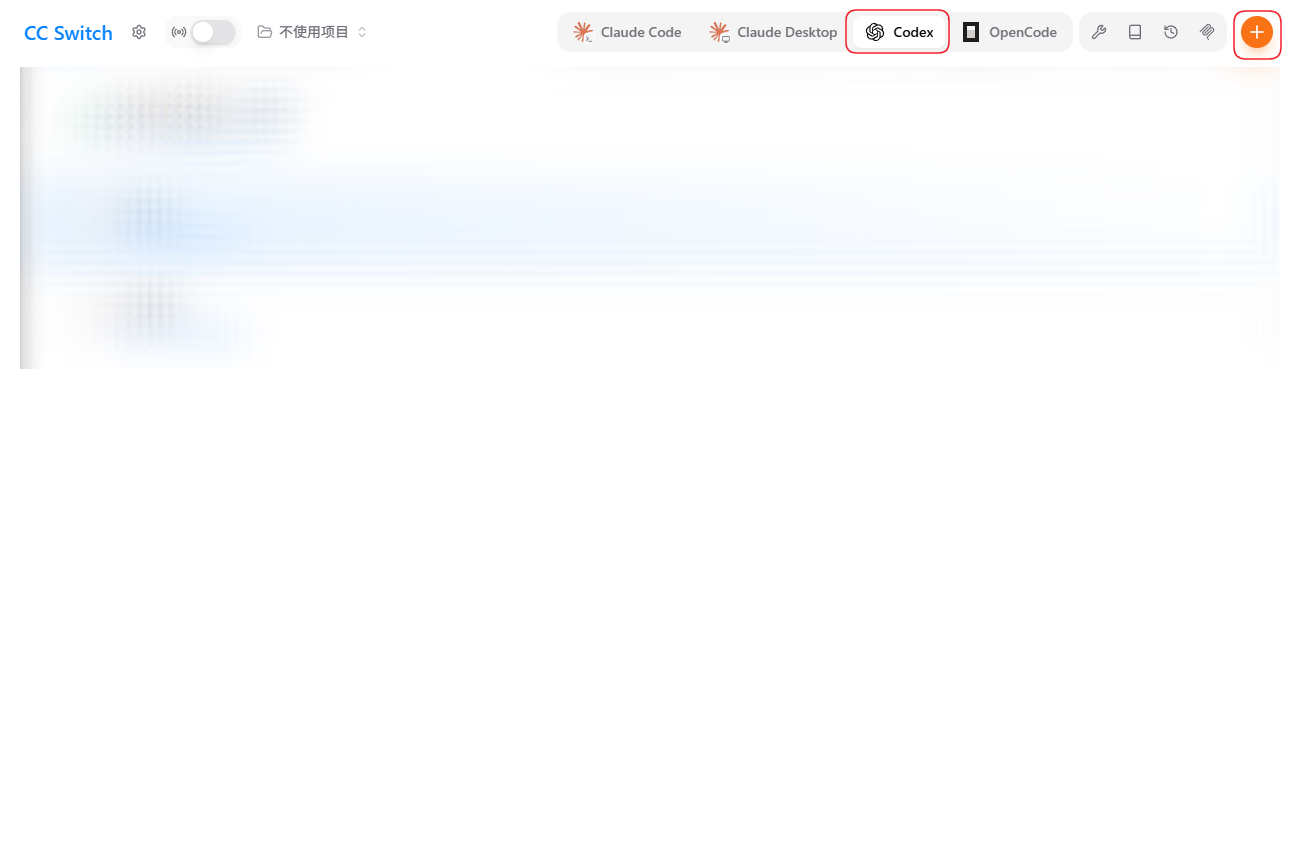
Open CC Switch, switch to the Codex tab at the top, and click the orange "+" in the top-right.
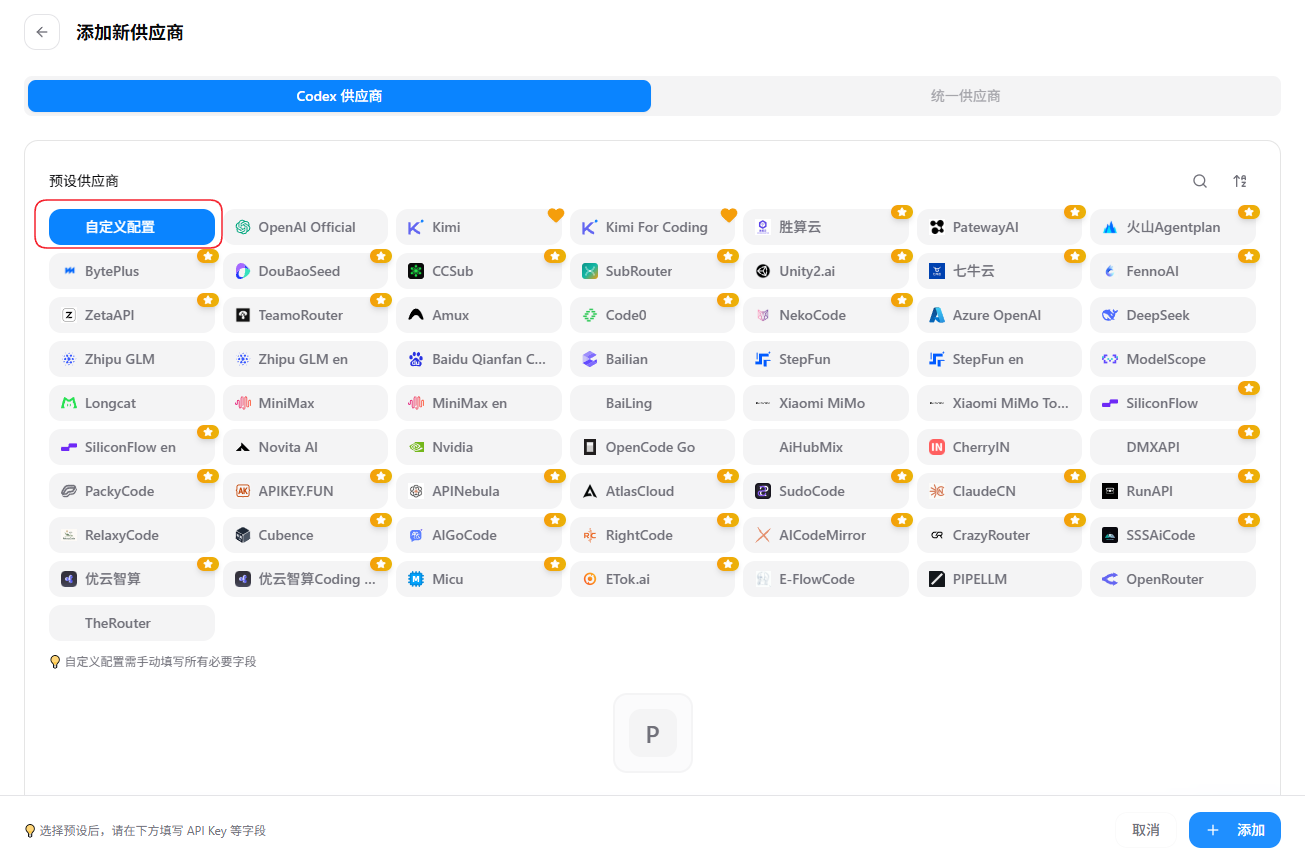
On the "Add Provider" page, keep Codex provider and click "Custom configuration" in the top-left.
2. Fill in the details
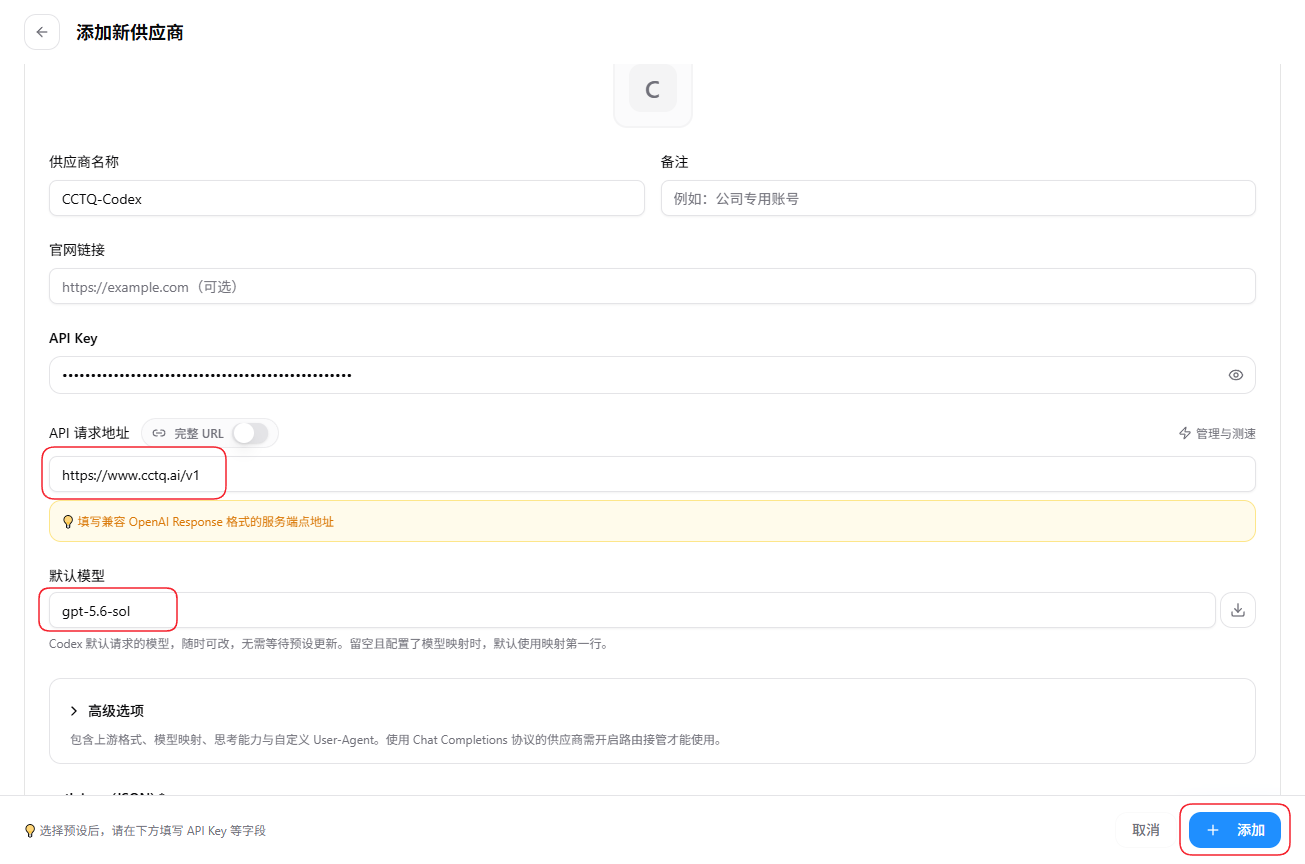
- Provider name: anything you like, e.g.
CCTQ-Codex - API Key: your token key
- API request URL: enter
https://www.cctq.ai/v1(an OpenAI-Response-compatible endpoint, must end with/v1) - Default model: the model you want to use, e.g.
gpt-5.6-sol
Click "+ Add" in the bottom-right when done.
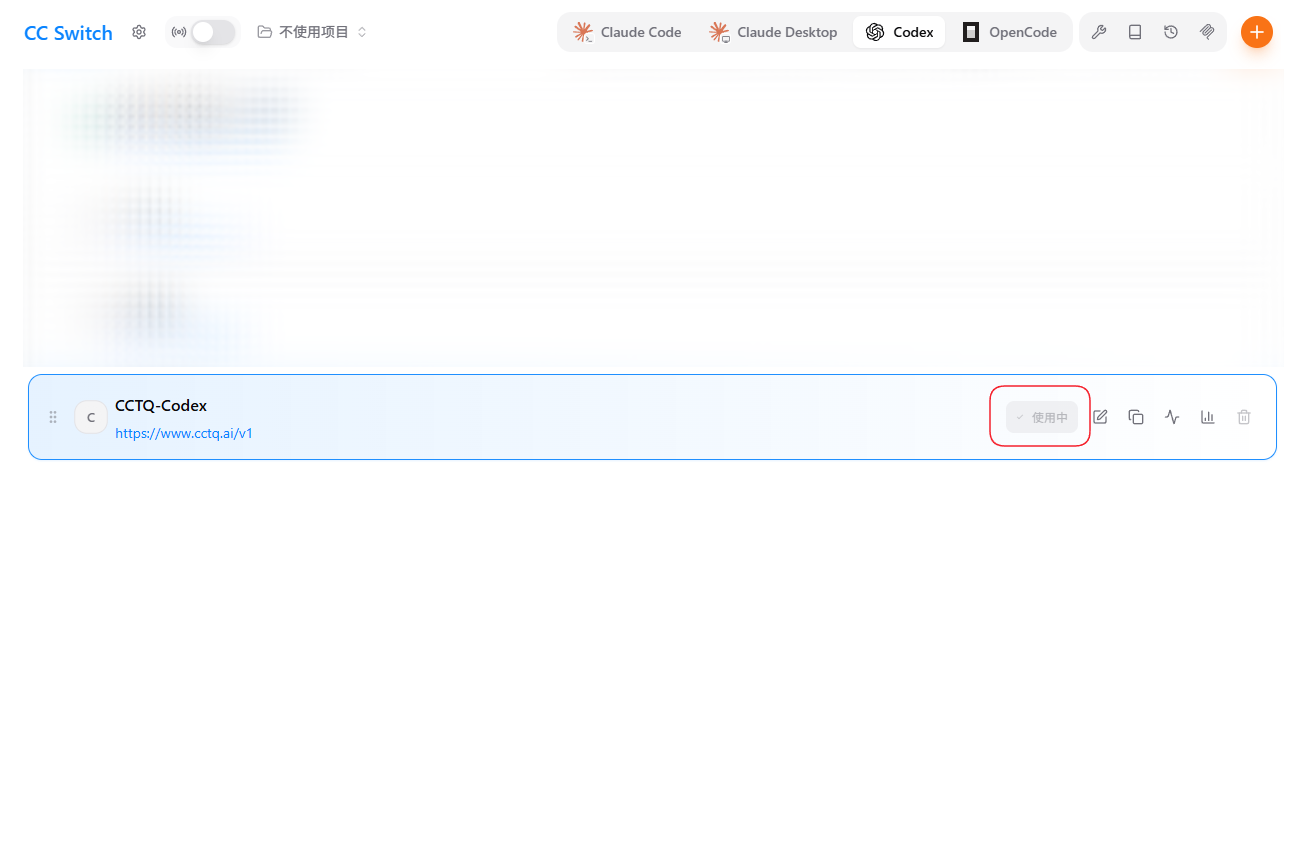
3. Enable the provider
Back in the list, click "Enable" on the CCTQ-Codex card. When the button shows "In use", it's enabled.
4. Verify
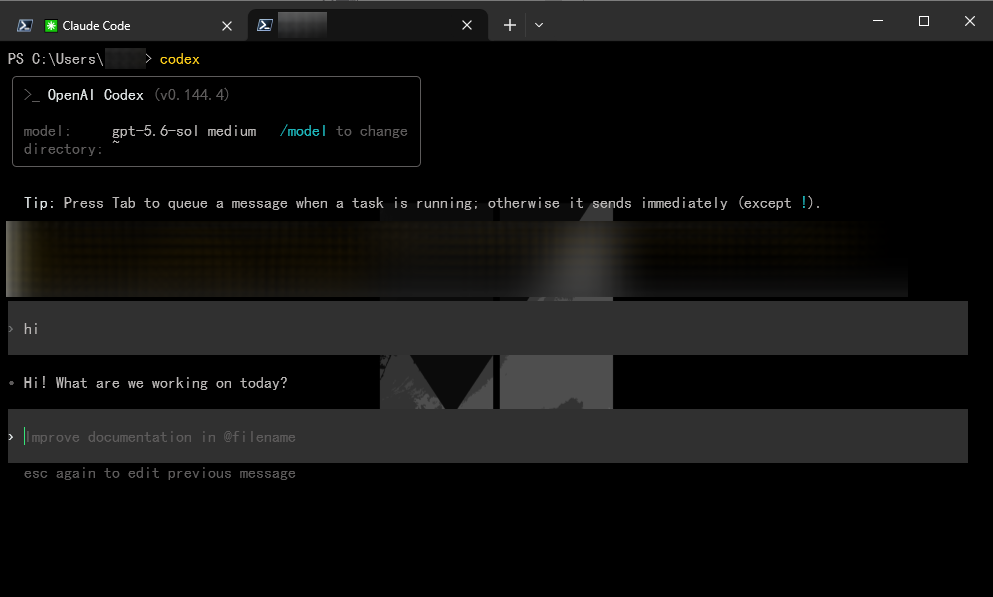
Open the Codex terminal, run codex, and send any message (e.g. hi) — a normal reply means the setup succeeded.