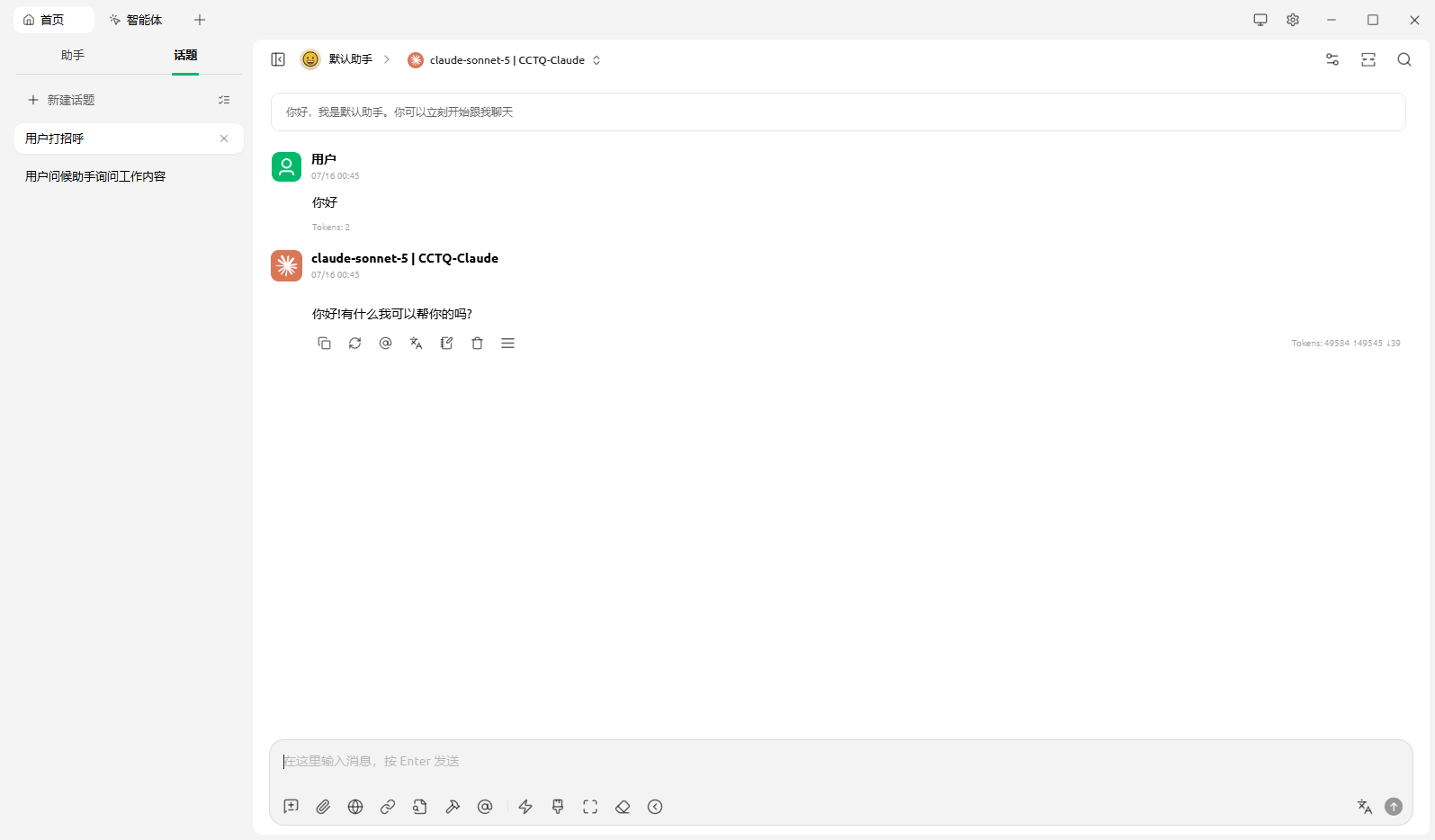
Cherry Studio Setup Guide
This guide is based on Cherry Studio v1.9.12 (Windows 10). Other versions may look slightly different.
About third-party compatibility
Any third-party client involves many compatibility differences when integrating with an official API. This guide only demonstrates the basic setup — it cannot guarantee that every model / agent runs flawlessly with zero errors. If a particular model or feature turns out to be incompatible, that's normal; try switching models or adjust per the official docs.
We recommend using each model in its own official product when possible.
In Cherry Studio, GPT and Claude use different API types, so you need to add two separate providers. The API URL is the same for both — only the provider type differs.
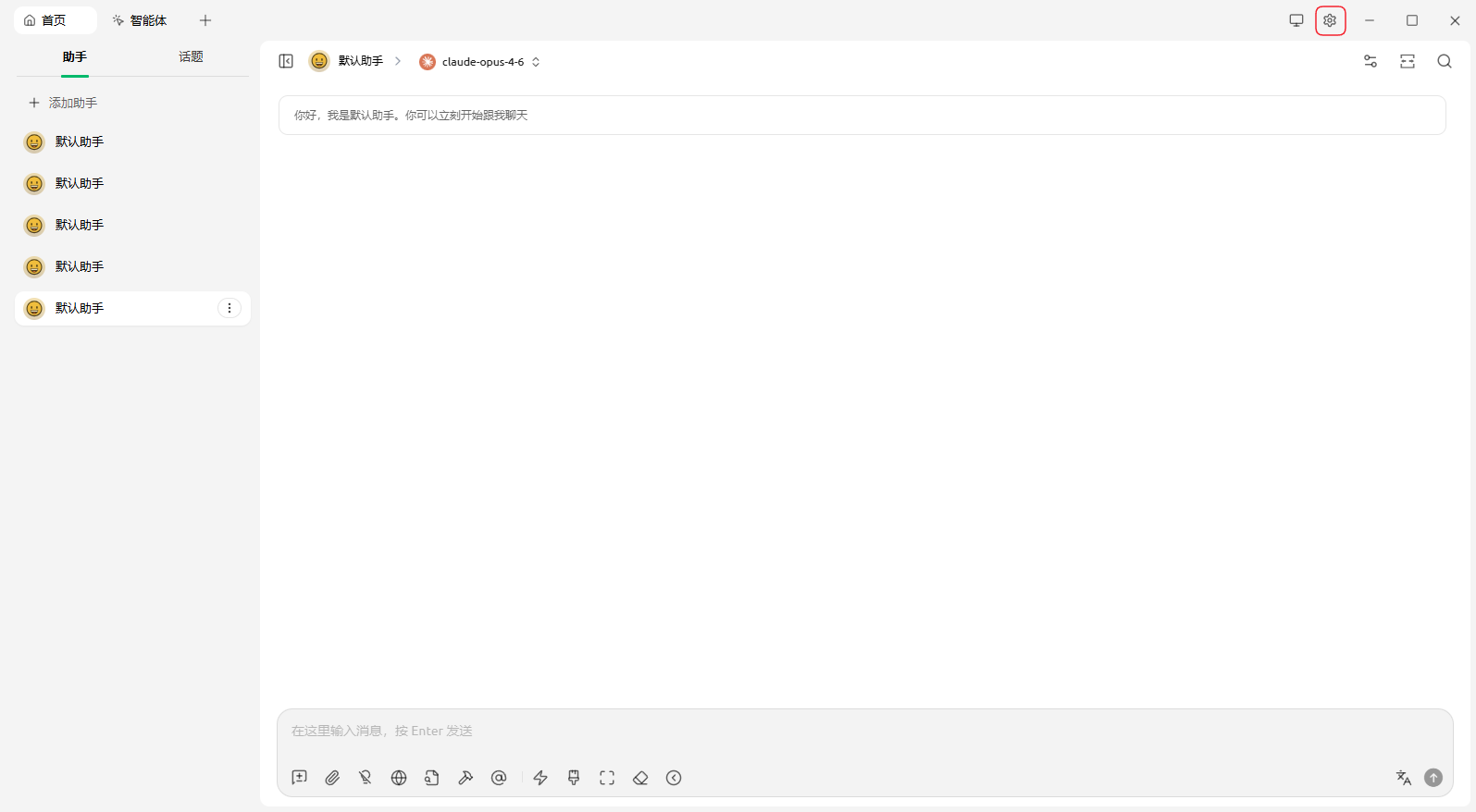
1. Open Settings
Open Cherry Studio and click Settings (the gear icon) in the top-right corner.
2. Add GPT / Codex models
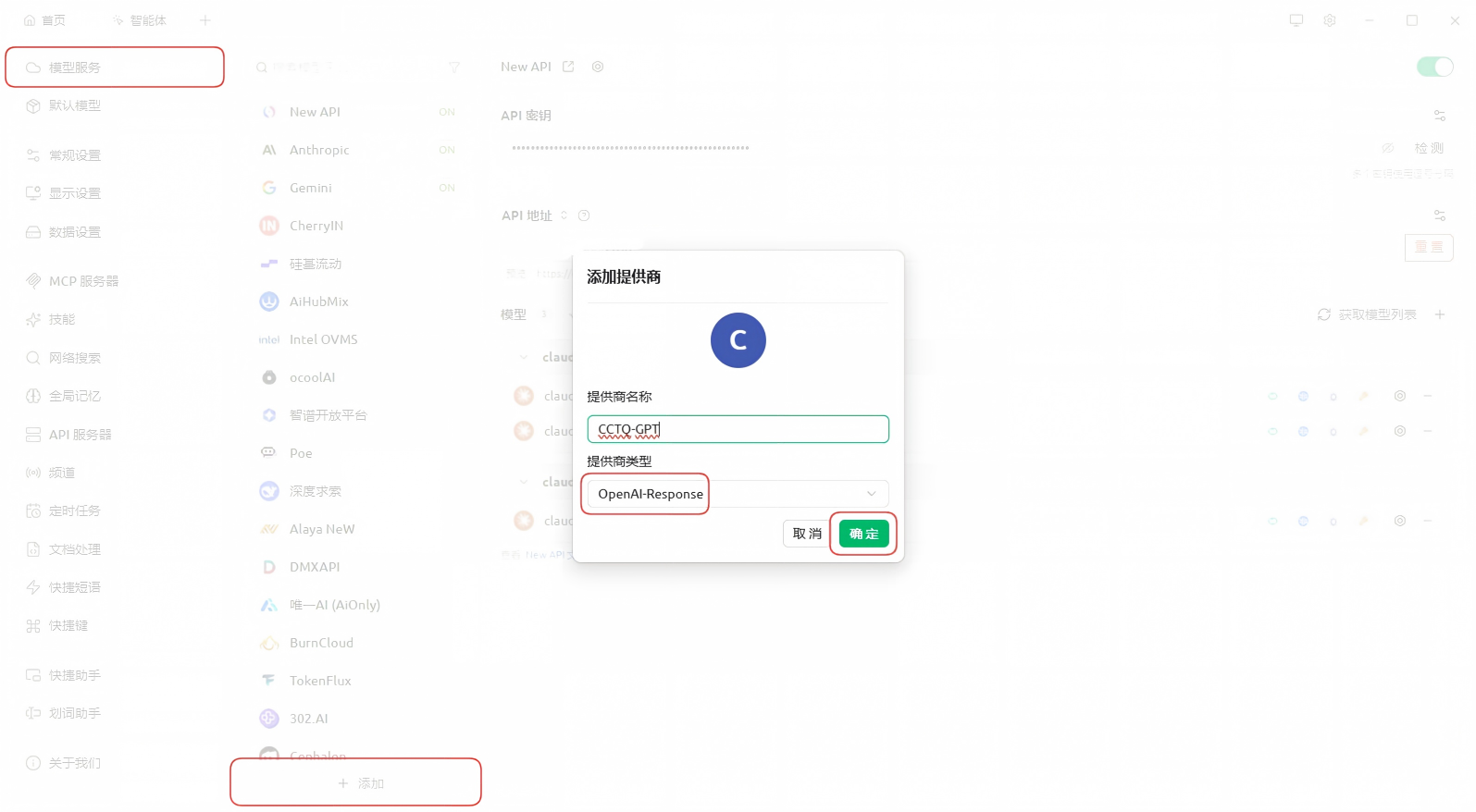
2.1 Add a provider
Go to Model Services, click "+ Add" at the bottom of the left list, and in the "Add Provider" dialog fill in:
- Provider name: anything you like, e.g.
CCTQ-GPT - Provider type: choose
OpenAI-Response
Click OK when done.
2.2 Fill in the key and URL
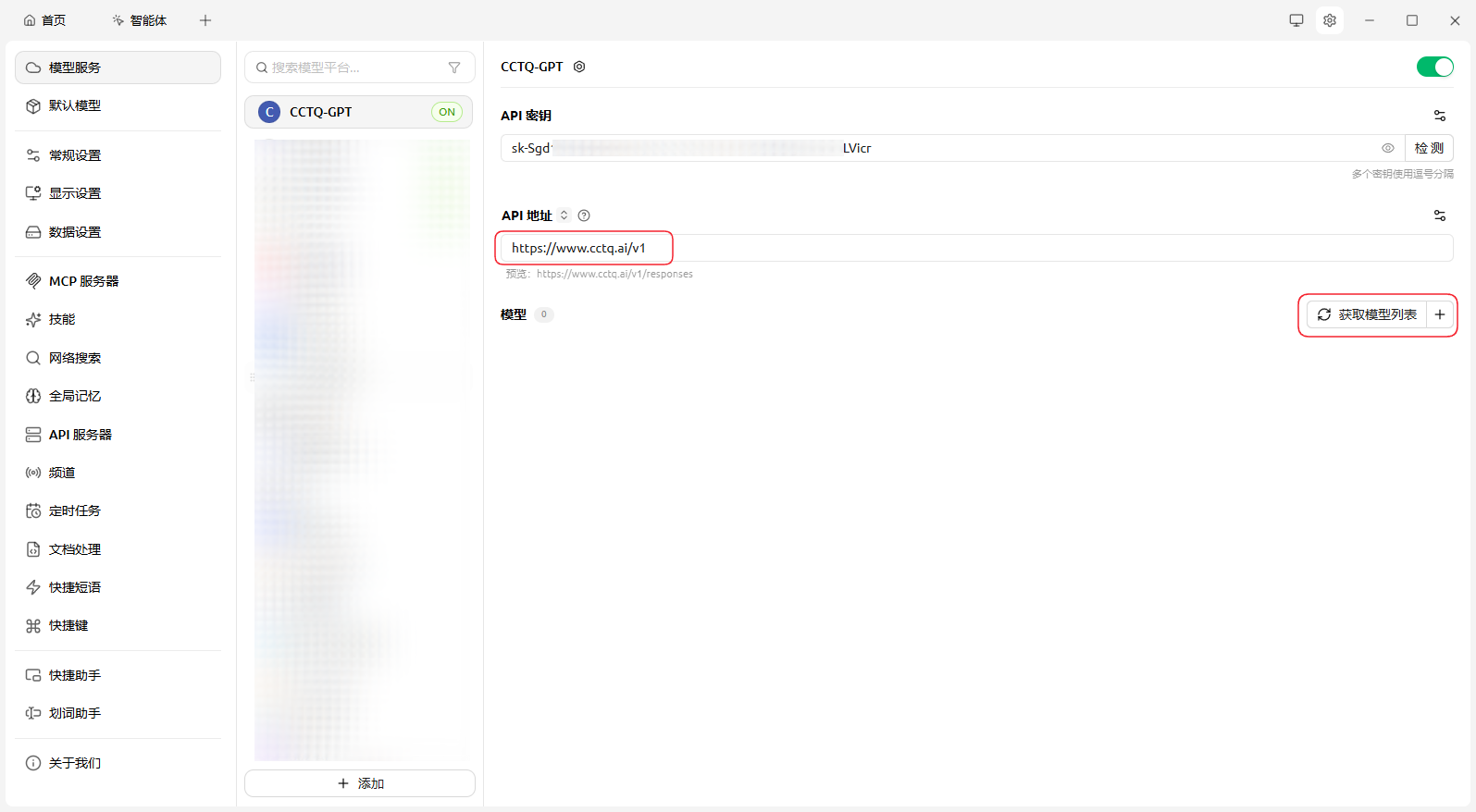
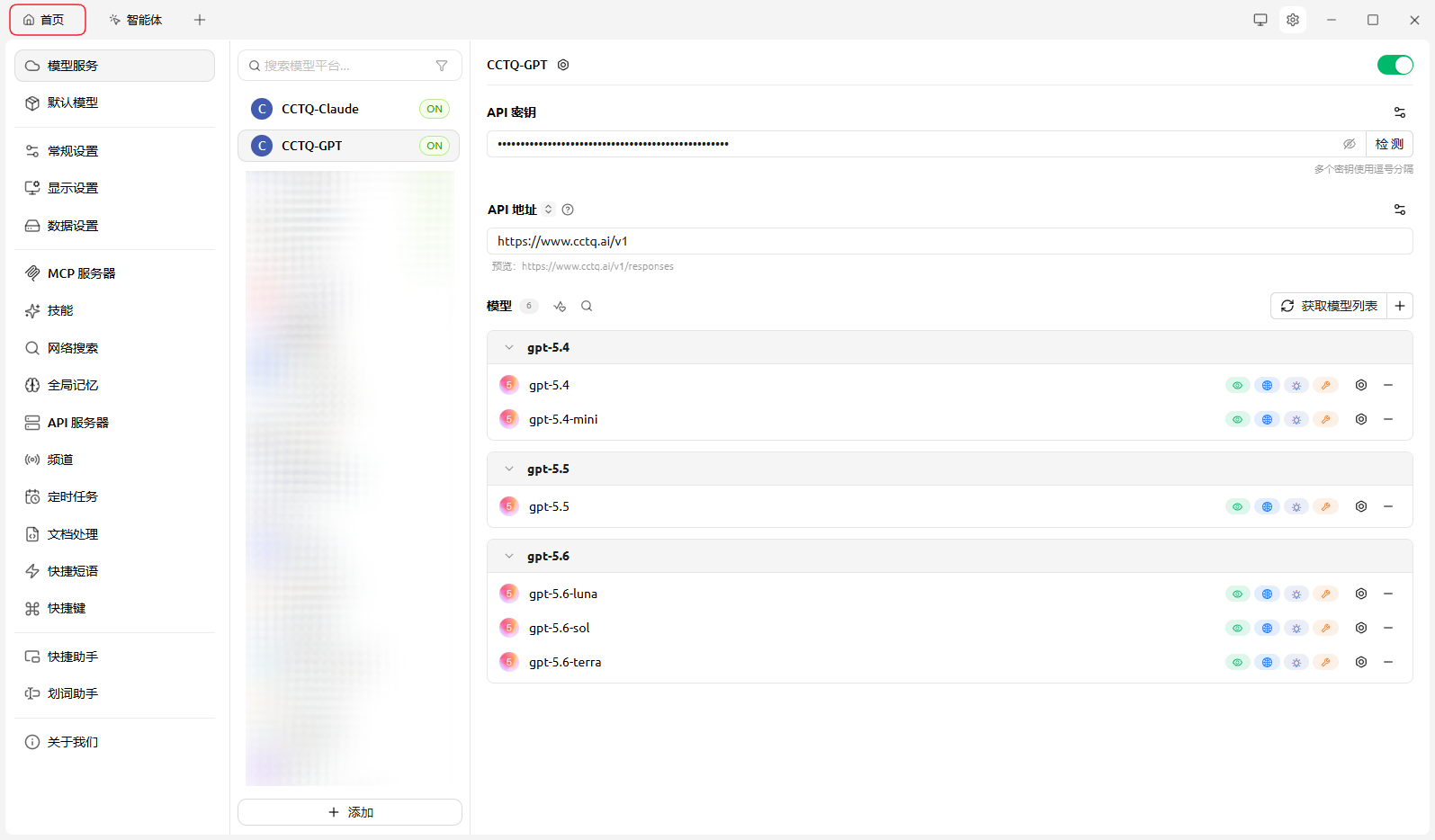
On the new provider page, fill in:
- API key: your token key
- API URL: enter
https://www.cctq.ai/v1(the preview below will showhttps://www.cctq.ai/v1/responses)
Then click "Fetch model list" on the right.
2.3 Add models
In the model list dialog, find the model you want (e.g. gpt-5.6-sol) and click the "+" on the right to add it.
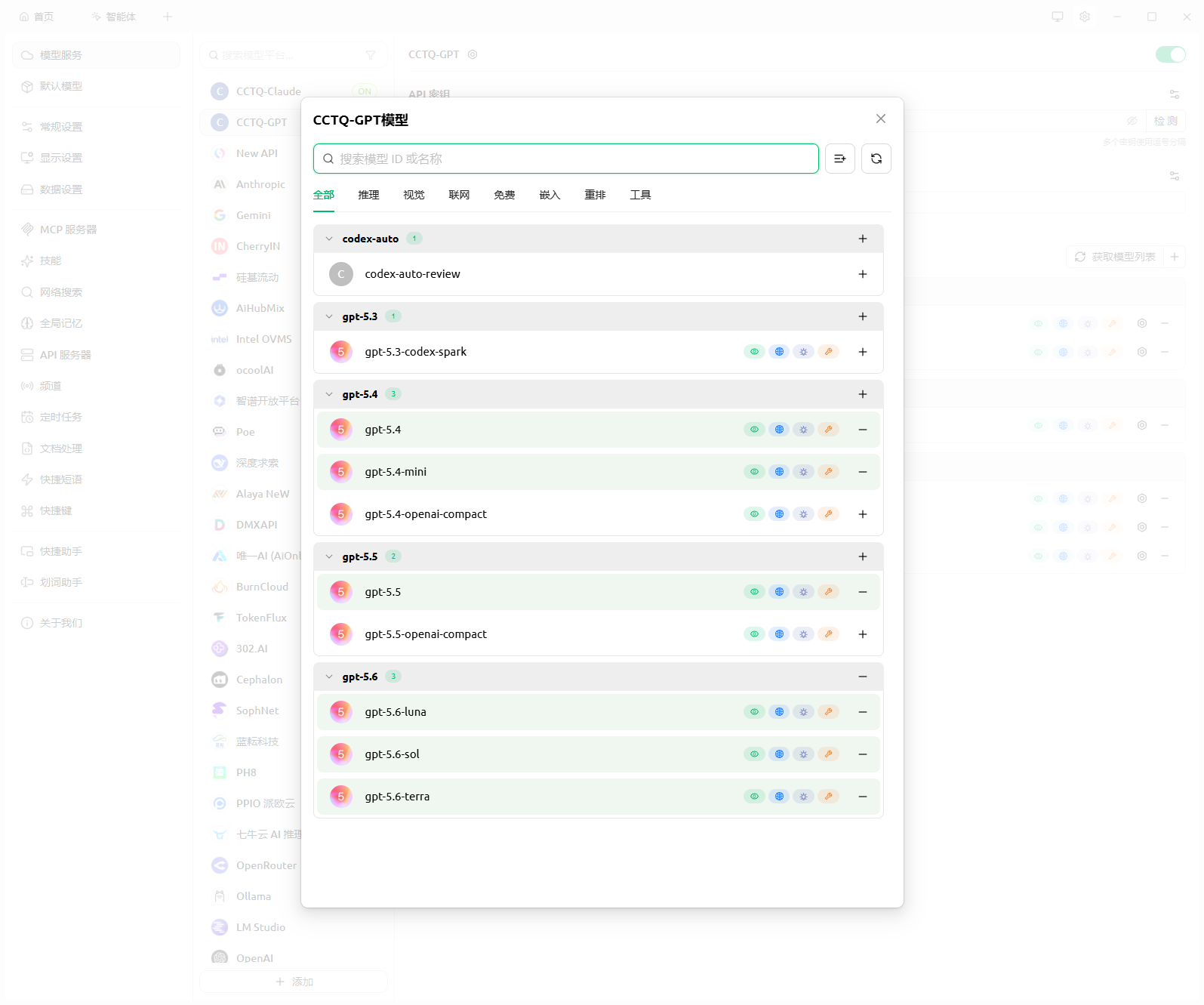
Once added, the enabled models appear under the provider.
2.4 Pick a model and chat
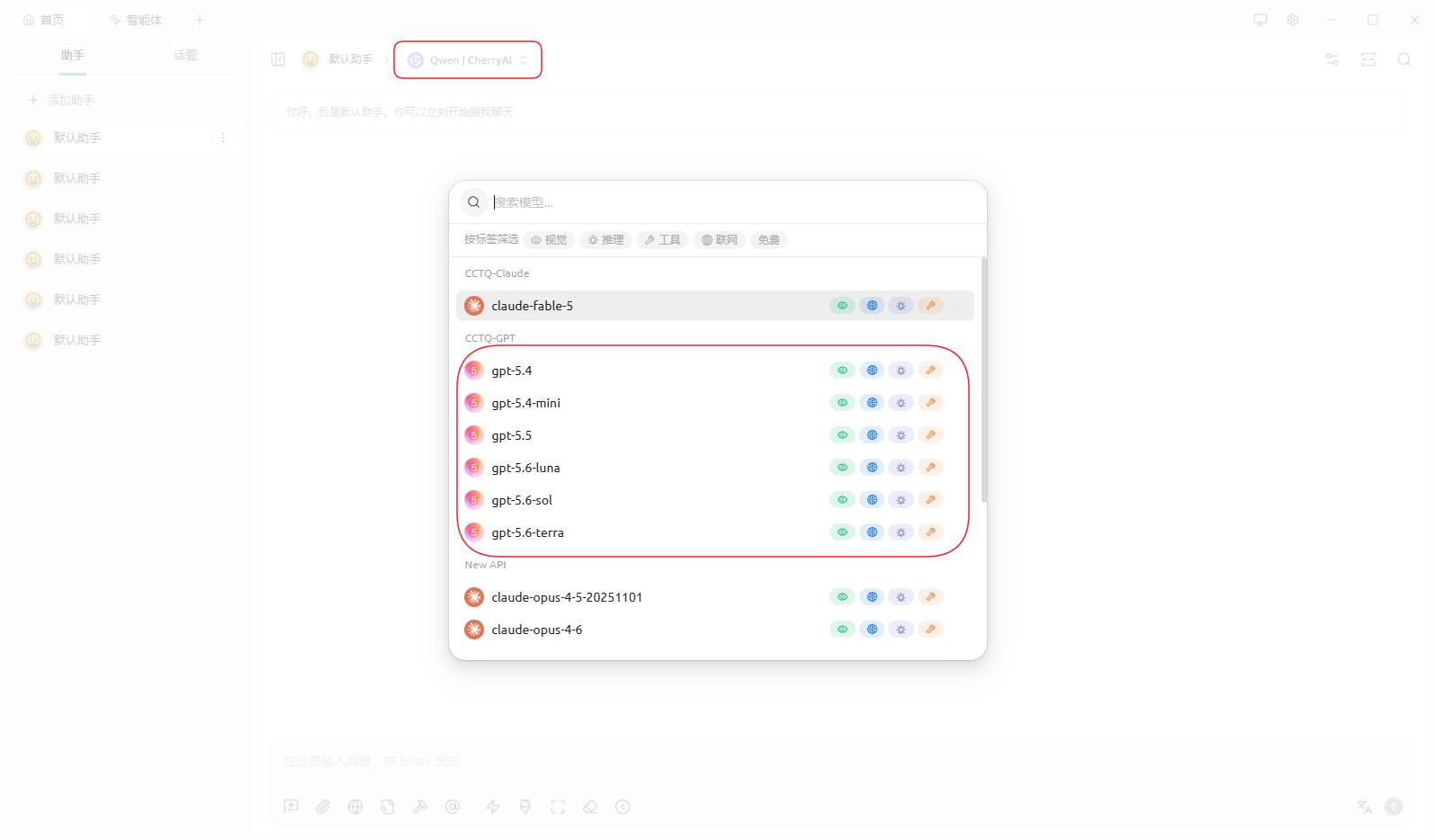
Return to the Home chat screen, click the model selector at the top, and pick the model you just added under the CCTQ-GPT group.
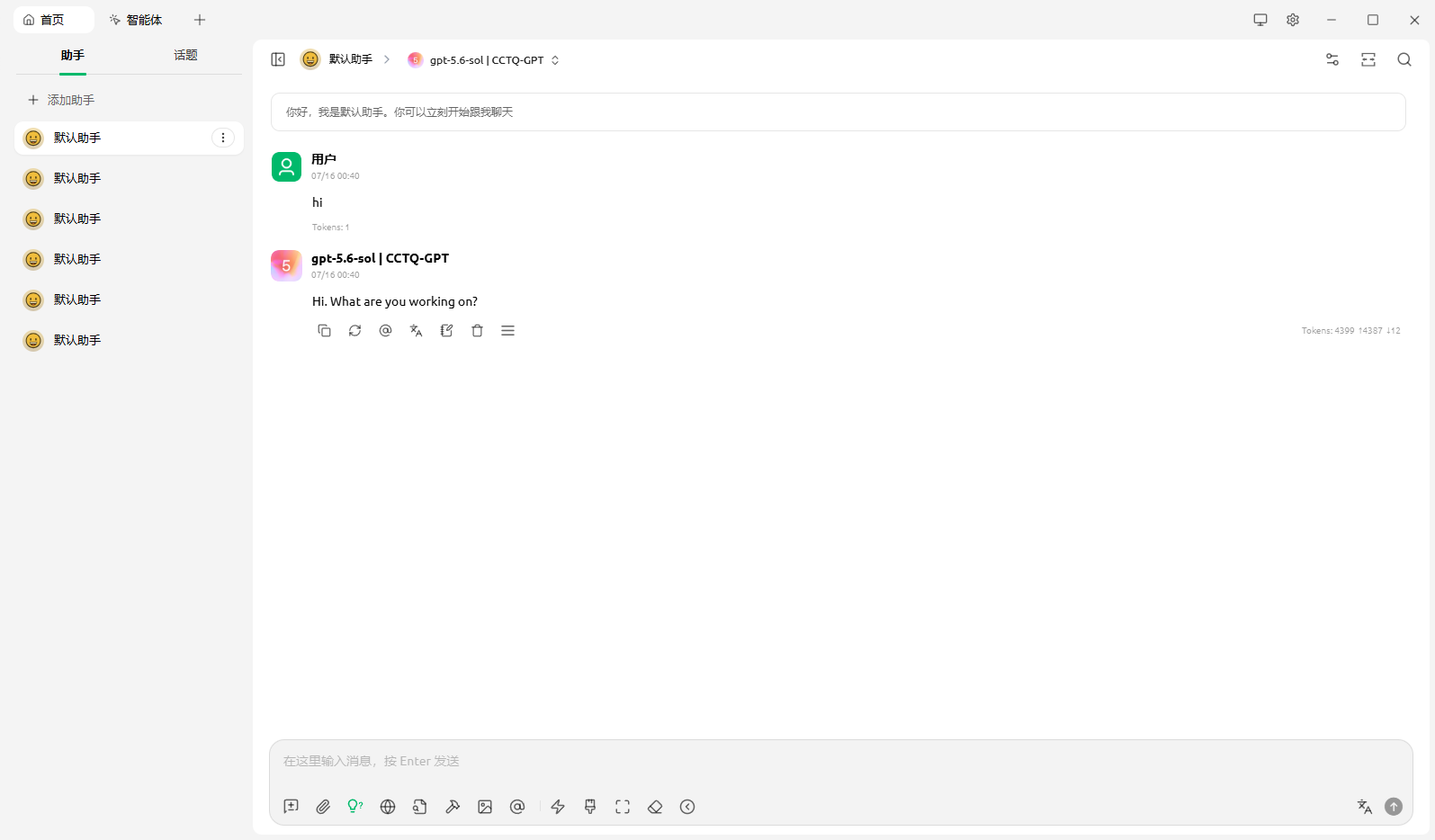
Send any message (e.g. hi) — a normal reply means the setup succeeded.
3. Add Claude models
Claude uses the Anthropic API, so create another provider. The steps are the same — only the provider type differs.
3.1 Add a provider
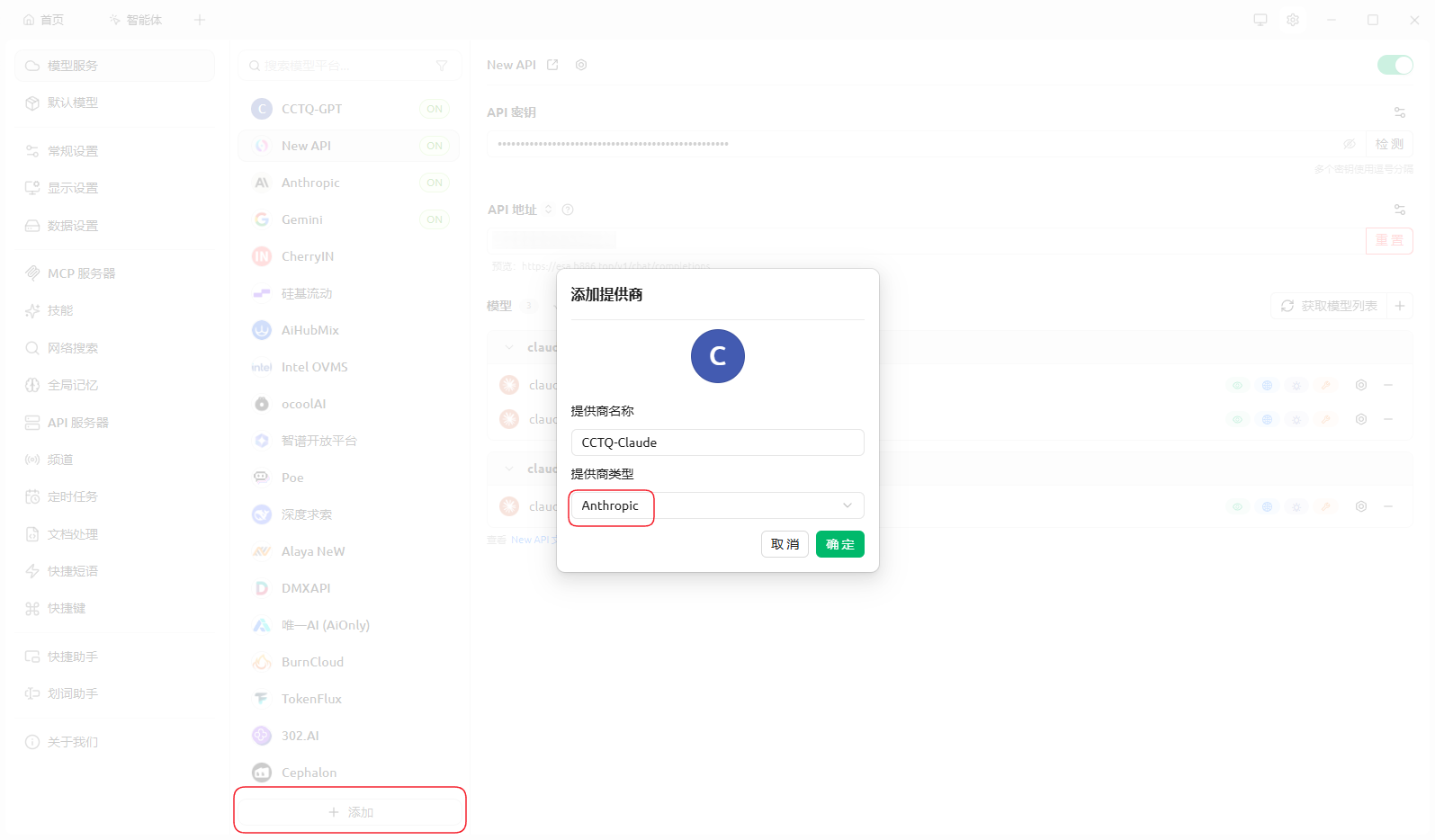
Click "+ Add" at the bottom again, and fill in:
- Provider name: anything you like, e.g.
CCTQ-Claude - Provider type: choose
Anthropic
Click OK when done.
3.2 Fill in the key and URL
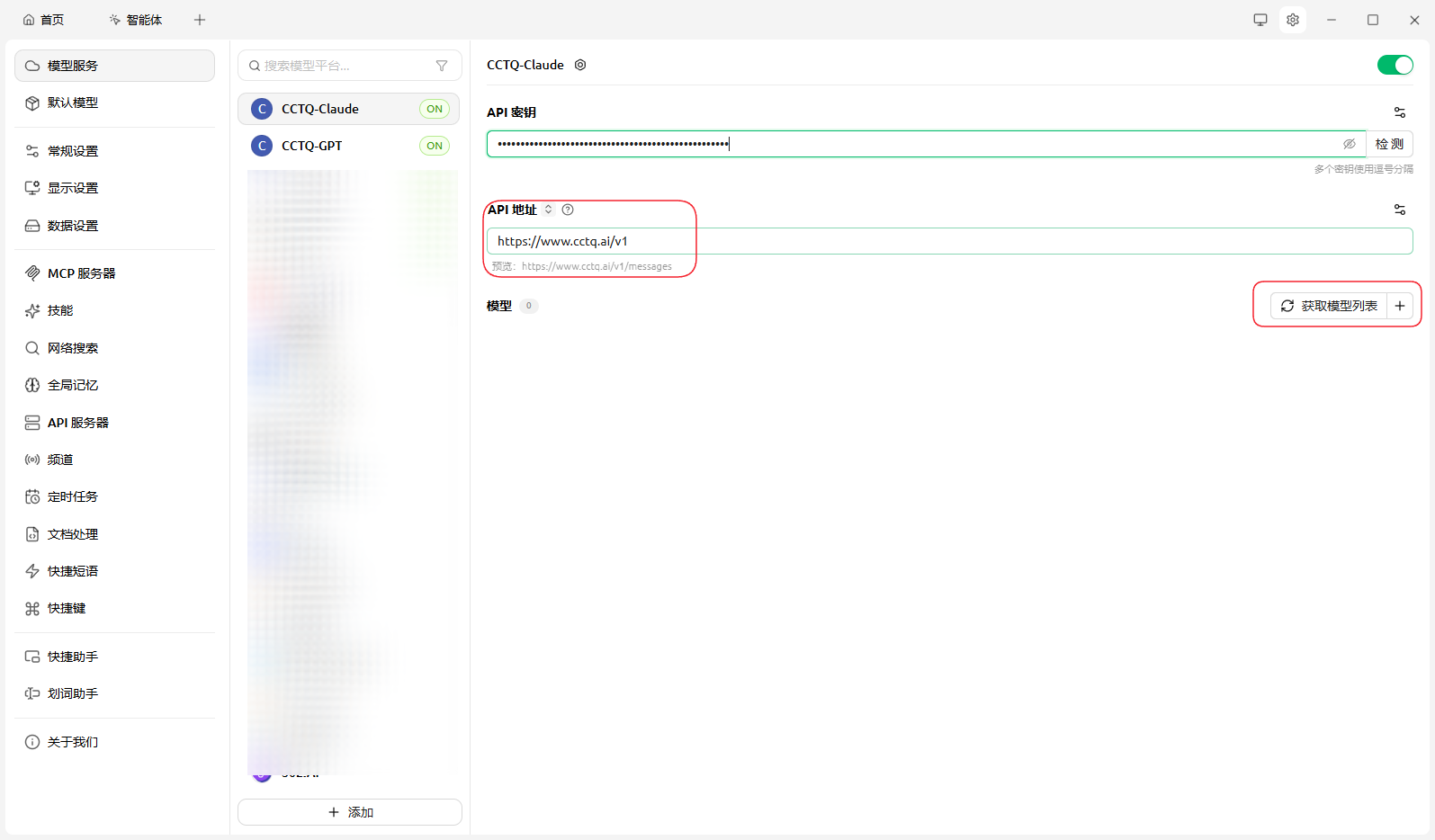
- API key: your token key
- API URL: also enter
https://www.cctq.ai/v1(the preview below will showhttps://www.cctq.ai/v1/messages)
Then click "Fetch model list" on the right.
3.3 Add models
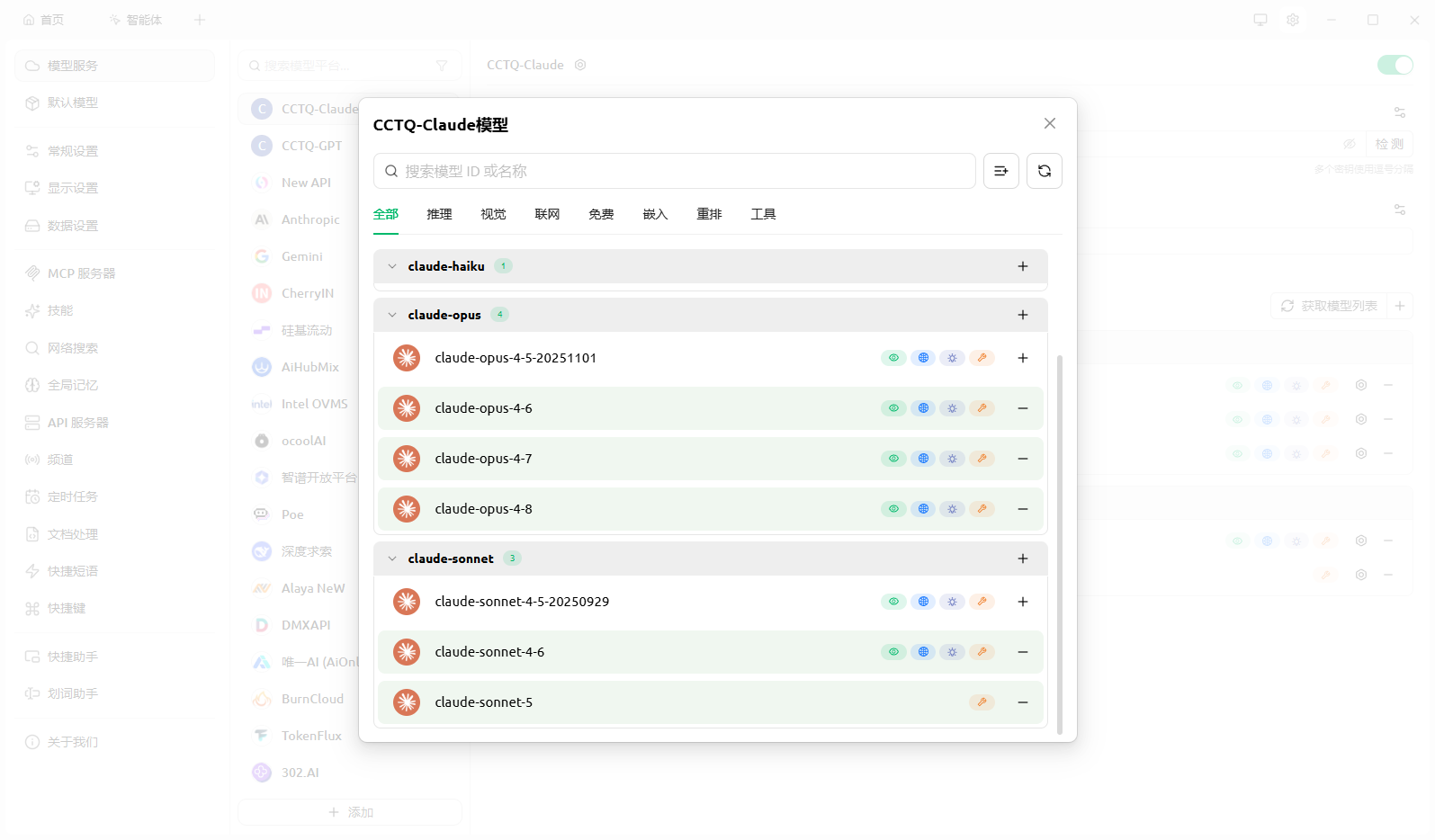
In the model list, find the model you want (e.g. claude-sonnet-5) and click the "+" on the right to add it.
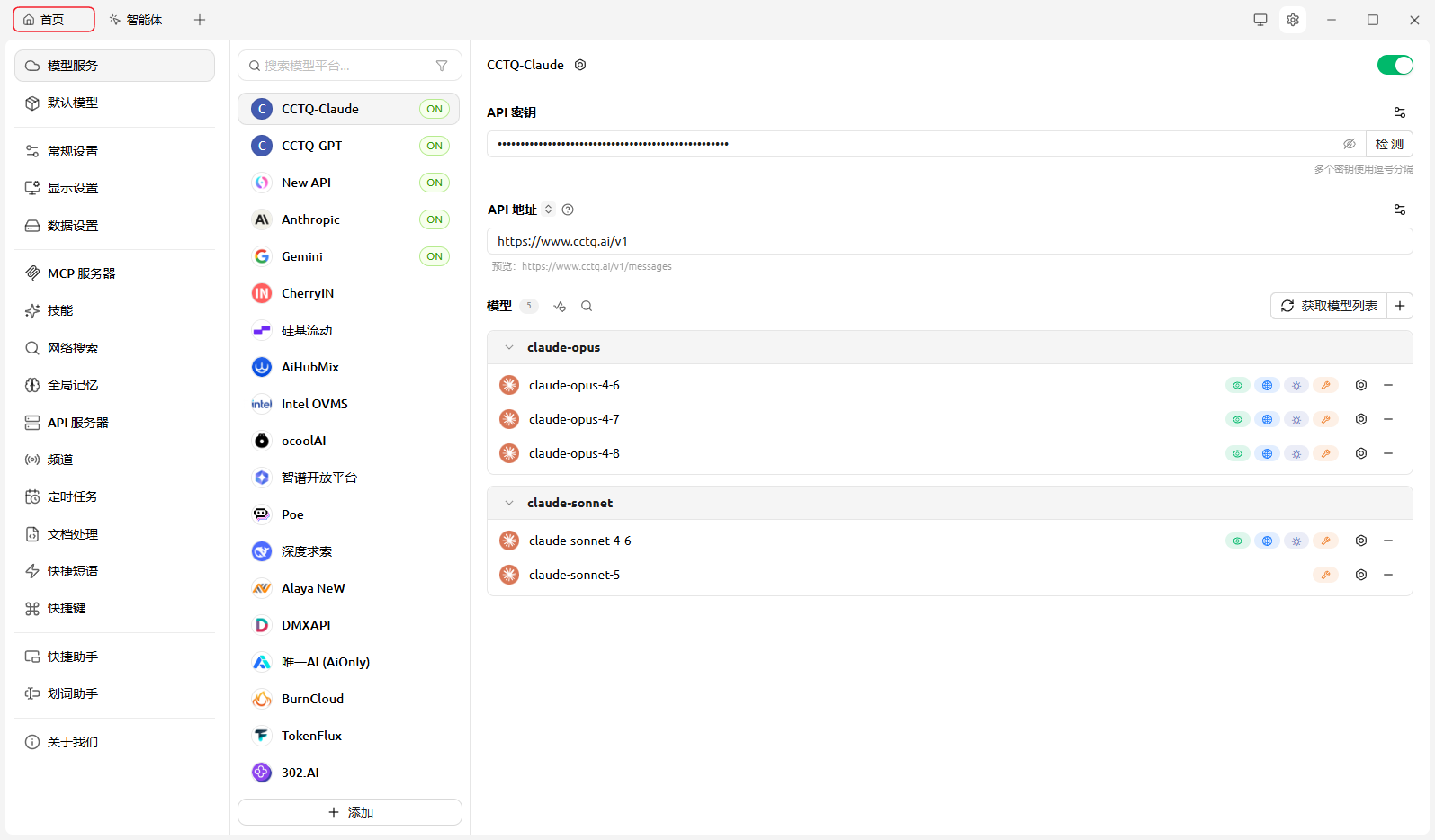
Once added, the enabled Claude models appear under the provider.
3.4 Pick a model and chat
Return to the Home chat screen, click the model selector at the top, and pick the model you just added under the CCTQ-Claude group.
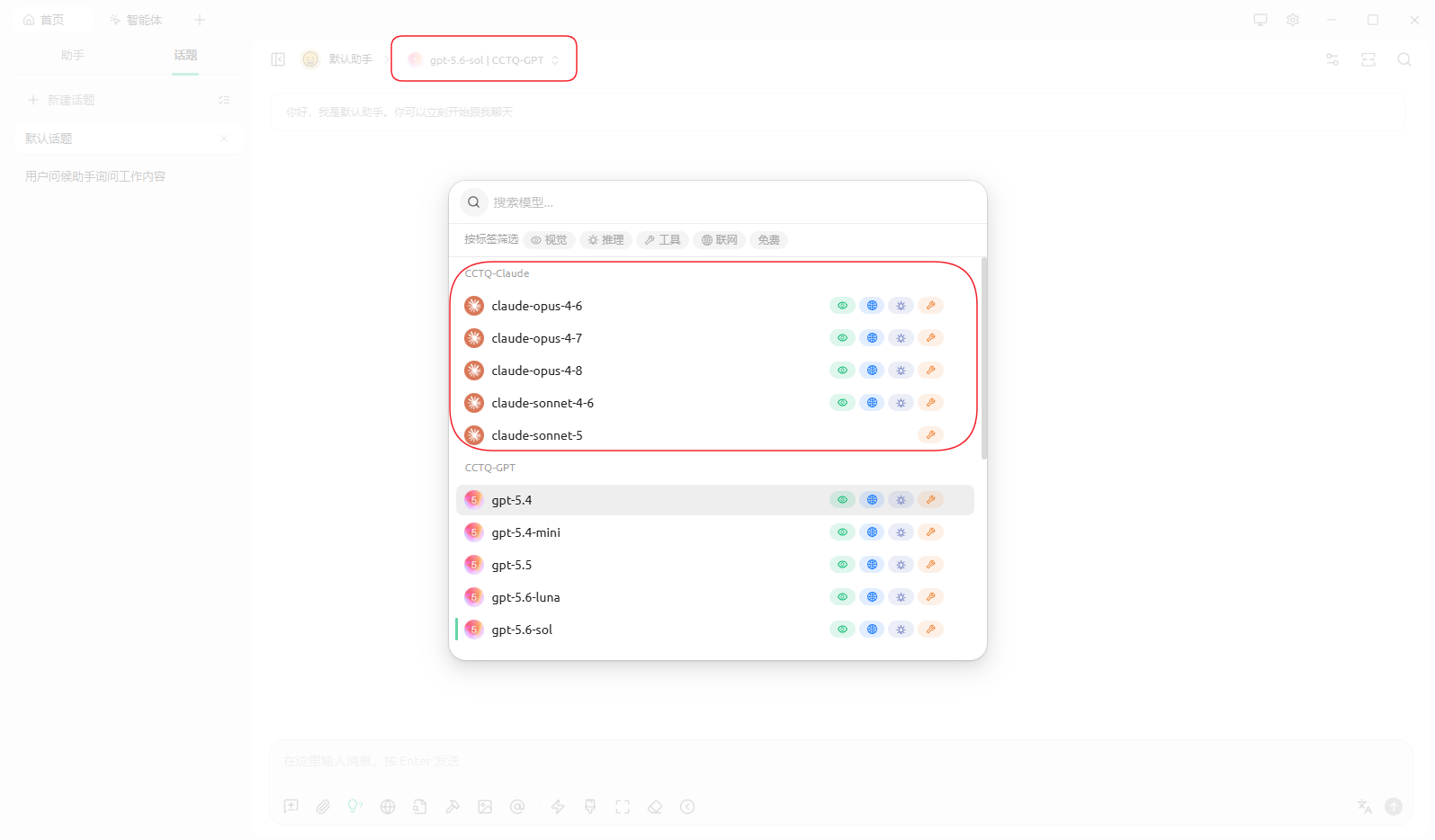
Send any message (e.g. "你好") — a normal reply means the setup succeeded.