
Hermes Setup Guide
Using third-party clients
For a more consistent and complete experience, we recommend using each model in its provider’s official client.
Third-party apps update at different speeds and may adapt APIs differently. Compatibility issues can include cache misses, unavailable tools, or request errors. If you encounter a problem, first check the client version, configuration, and model support.
This guide focuses on simple, quick setup for basic use. Advanced features and custom workflows are welcome to explore, but usually require technical knowledge and fall outside our standard support scope. Our support team may offer suggestions where practical, but cannot guarantee troubleshooting or a solution for every issue.
This guide connects Hermes to CCTQ’s GPT and Claude models by editing Hermes’s config.yaml. Before starting, install Hermes and prepare your own token key. The screenshots show the Chinese interface.
1. Find the Hermes configuration file
The default HERMES_HOME location differs by operating system. In every case, the configuration file is config.yaml inside that directory:
| System | Default HERMES_HOME | config.yaml location |
|---|---|---|
| Native Windows | %LOCALAPPDATA%\hermes | %LOCALAPPDATA%\hermes\config.yaml |
| Linux | ~/.hermes | ~/.hermes/config.yaml |
| macOS | ~/.hermes | ~/.hermes/config.yaml |
Open config.yaml for your system. If the file does not exist yet, start Hermes once so it can create its configuration directory and file.
2. Append the configuration to the end of the file
Append the entire block below to the very bottom of config.yaml:
# ===== Custom third-party models =====

providers:
  # GPT / Codex
  cctq:
    api: https://www.cctq.ai/v1
    api_key: sk_xxxx
    transport: codex_responses
    models:
      gpt-6-astra:
        context_length: 272000
      gpt-5-sol:
        context_length: 272000

  # Claude
  cctq_claude:
    api: https://www.cctq.ai
    api_key: sk_xxxx
    transport: anthropic_messages
    models:
      claude-opus-5:
        context_length: 272000
      claude-sonnet-5:
        context_length: 272000

# Default startup model
model:
  default: gpt-6-astra
  provider: custom:cctq

# ==== End of custom configuration ====
Keep these points in mind:
- Append this block to the end of the file. Do not delete any existing entries in
config.yaml. sk_xxxxis a placeholder. Replace it with your own token key created on CCTQ.gpt-6-astra,gpt-5-sol,claude-opus-5, andclaude-sonnet-5are example models. Use models supported by your token.- Save the file and restart Hermes for the changes to take effect.
3. Configuration fields
Provider and model fields
| Field | Meaning |
|---|---|
providers | The main configuration area for custom model providers. |
cctq | The custom provider name for GPT / Codex. Keep this name unchanged unless you also update the references below. |
cctq_claude | The custom provider name for Claude. It is different from the GPT provider name. |
api | The model API endpoint. GPT / Codex uses the address with /v1; Claude uses the address without /v1. |
api_key | The token key used to access the CCTQ API. Replace the example sk_xxxx with your own key. |
transport | The API transport used by Hermes. codex_responses is for GPT / Codex, and anthropic_messages is for Claude. |
models | The list of models available under the provider. |
context_length | The context length declared for a model. The example uses 272000; use a value supported by the model. |
Default model fields
| Field | Meaning |
|---|---|
model.default | The model Hermes selects at startup. The example is gpt-6-astra. |
model.provider | The provider used by the default model. custom:cctq refers to the cctq provider above. |
4. Select a model in Hermes
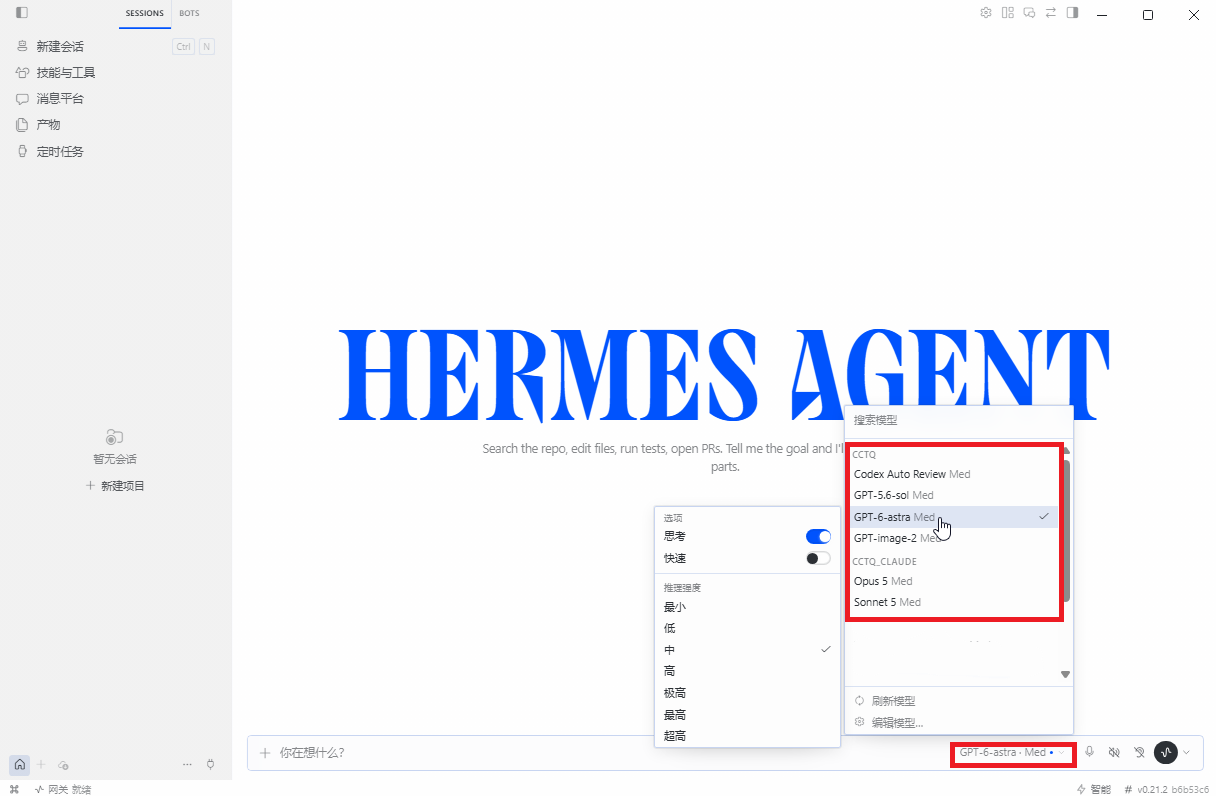
Restart Hermes and choose the model you want from the model list. The screenshot selects gpt-6-astra.
5. Send a test message
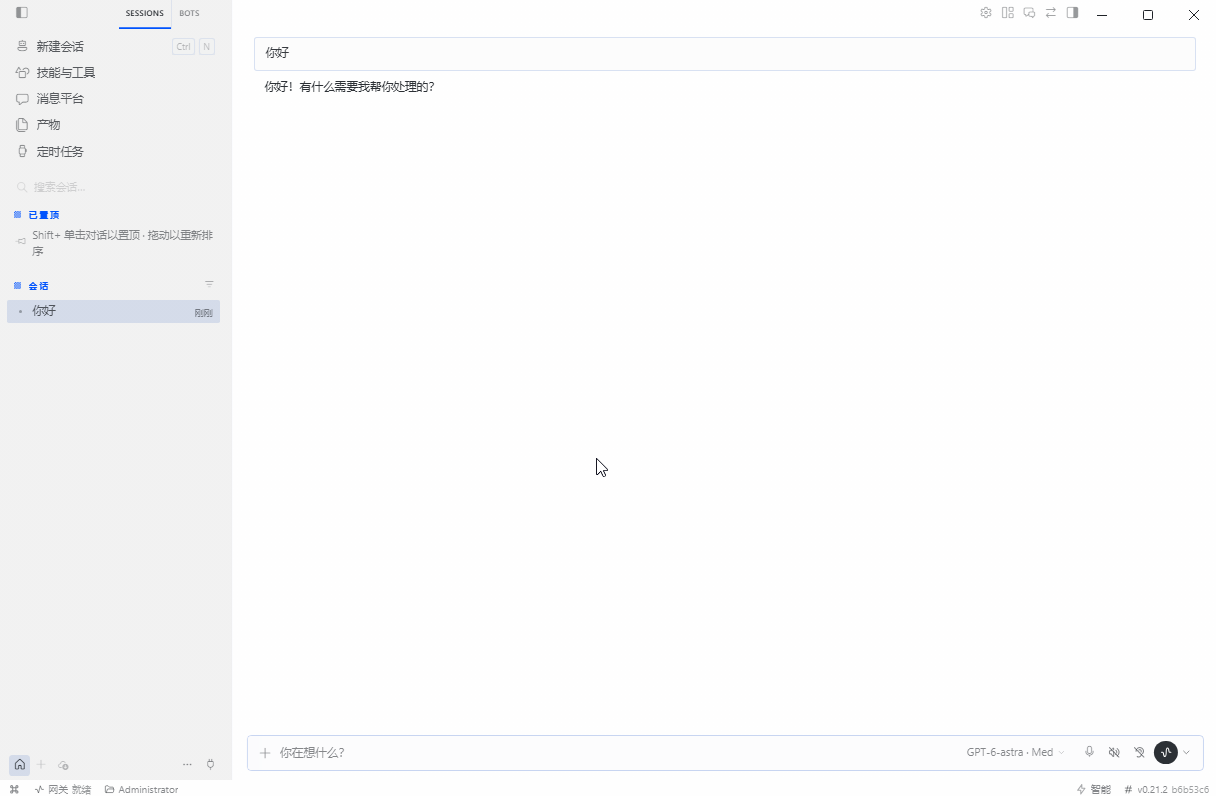
Send a message such as Hello. A normal reply confirms that the basic graphical client configuration is working.
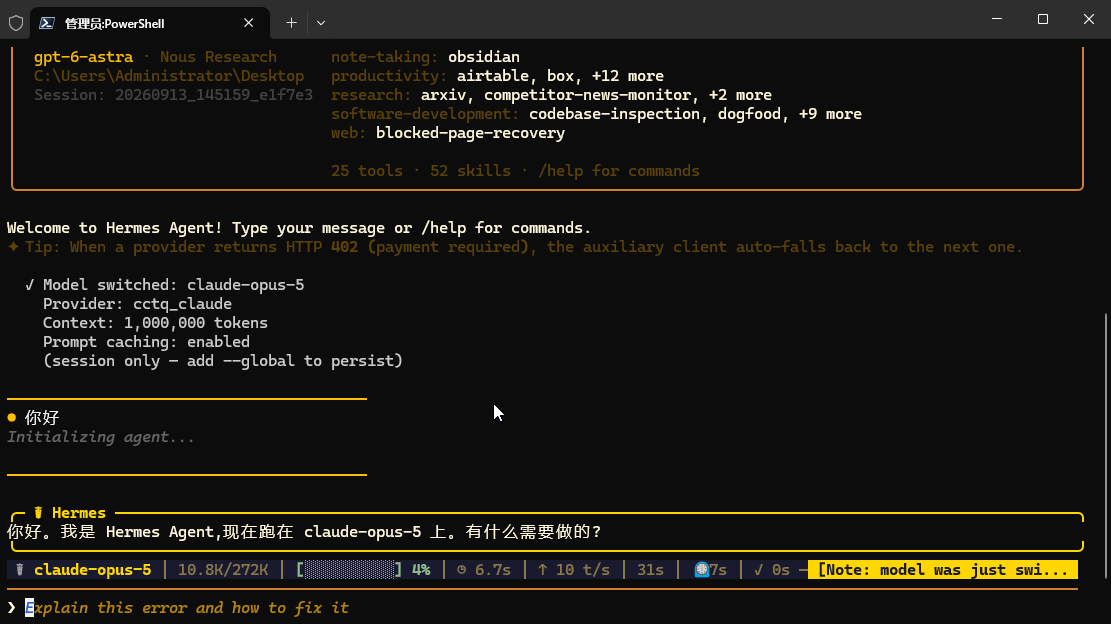
If you also use the Hermes CLI, you can start Hermes and send a test message there. Seeing the current model and a normal reply in the terminal confirms that the CLI configuration is working.
If a request fails, first check that config.yaml was saved, that the block was appended to the end of the file, and that the API URL, token key, transport, and model name match. Keep your real token key private.