OpenCode Setup Guide
About third-party compatibility
Any third-party client involves many compatibility differences when integrating with an official API. This guide only demonstrates the basic setup — it cannot guarantee that every model / agent runs flawlessly with zero errors. If a particular model or feature turns out to be incompatible, that's normal; try switching models or adjust per the official docs.
We recommend using each model in its own official product when possible.
TIP
For downloading and installing CC Switch, see CC-Switch Setup.
1. Add a provider
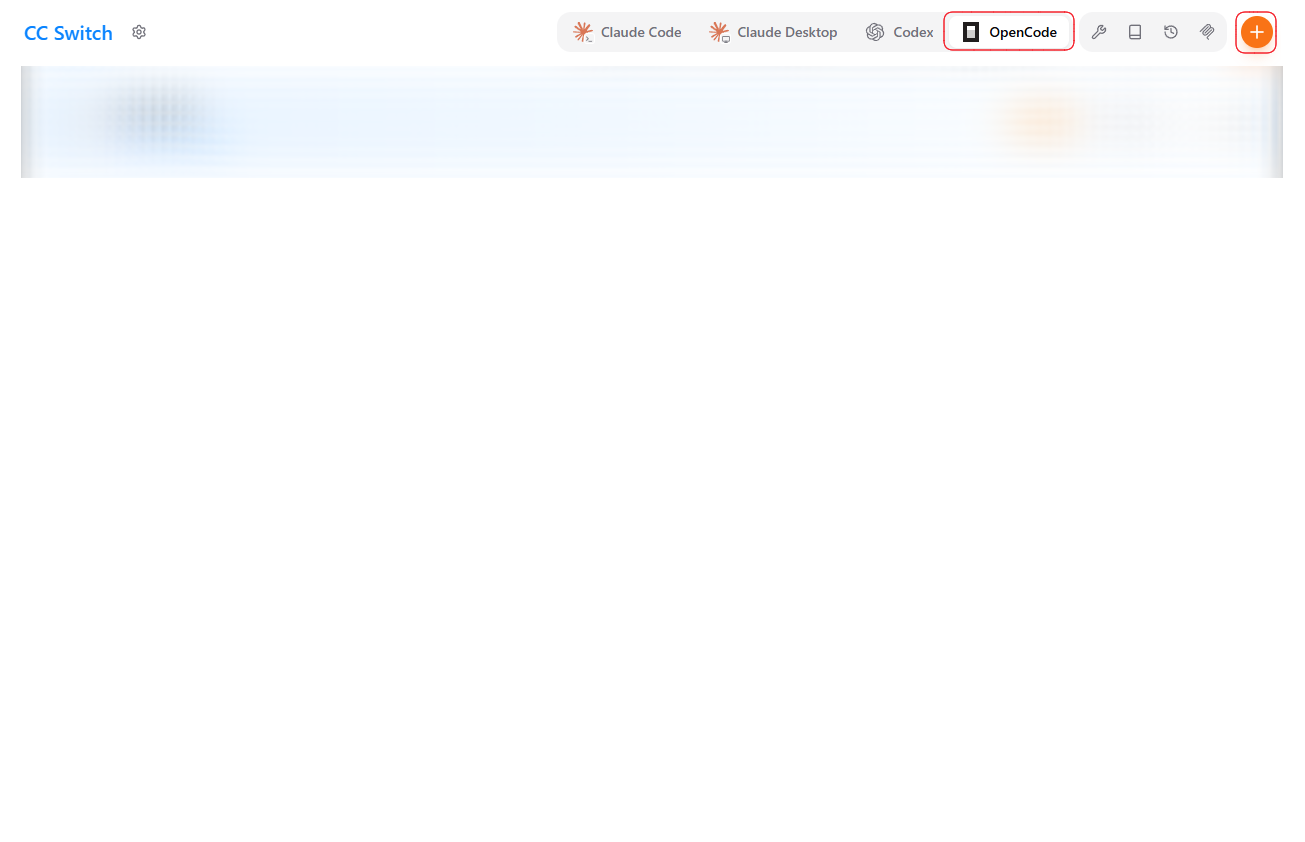
Open CC Switch, switch to the OpenCode tab at the top, and click the orange "+" in the top-right.
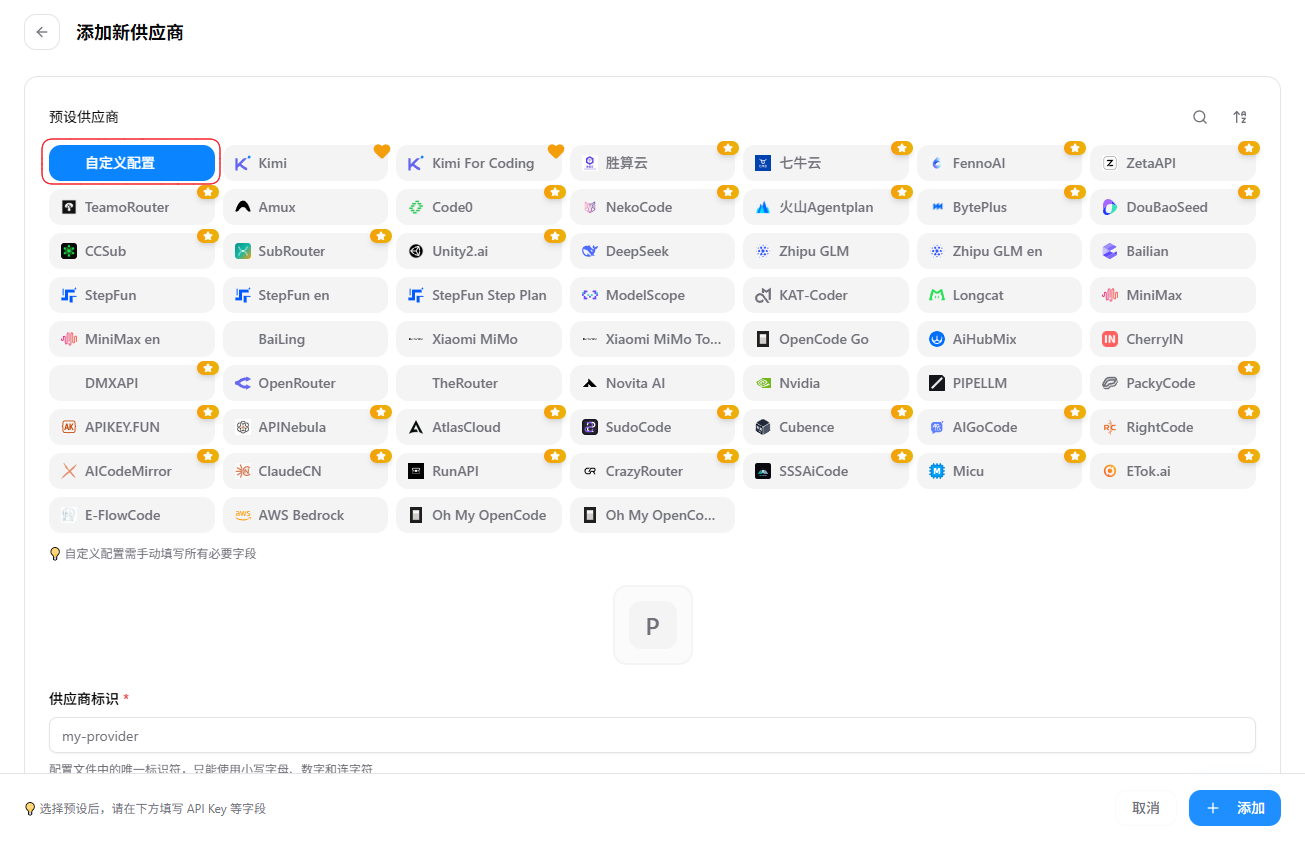
On the "Add Provider" page, click "Custom configuration" in the top-left.
2. Fill in the details
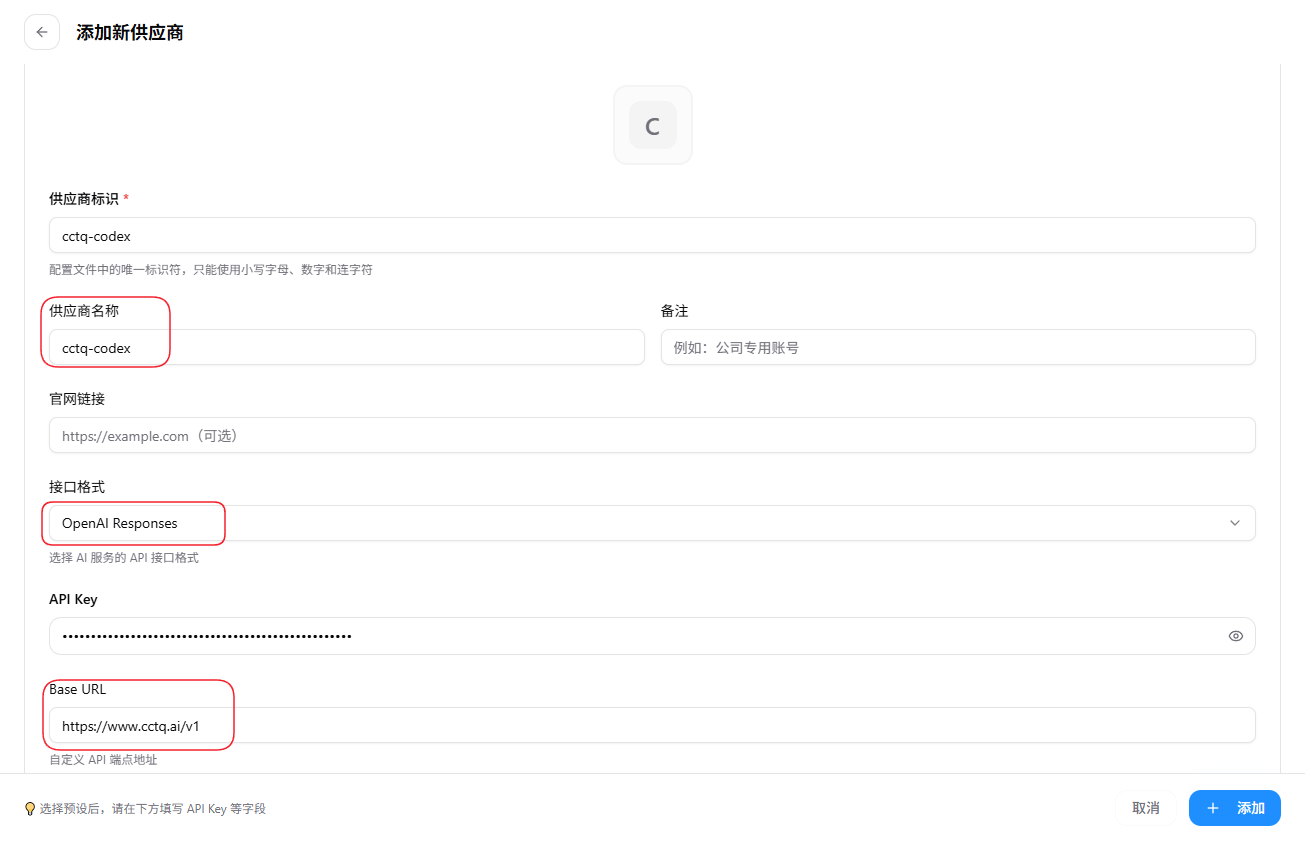
- Provider ID: a unique identifier in the config file — lowercase letters, digits, and hyphens only, e.g.
cctq-codex - Provider name: anything you like, e.g.
cctq-codex - API format: choose
OpenAI Responses - API Key: your token key
- Base URL: enter
https://www.cctq.ai/v1(must end with/v1)
3. Add models
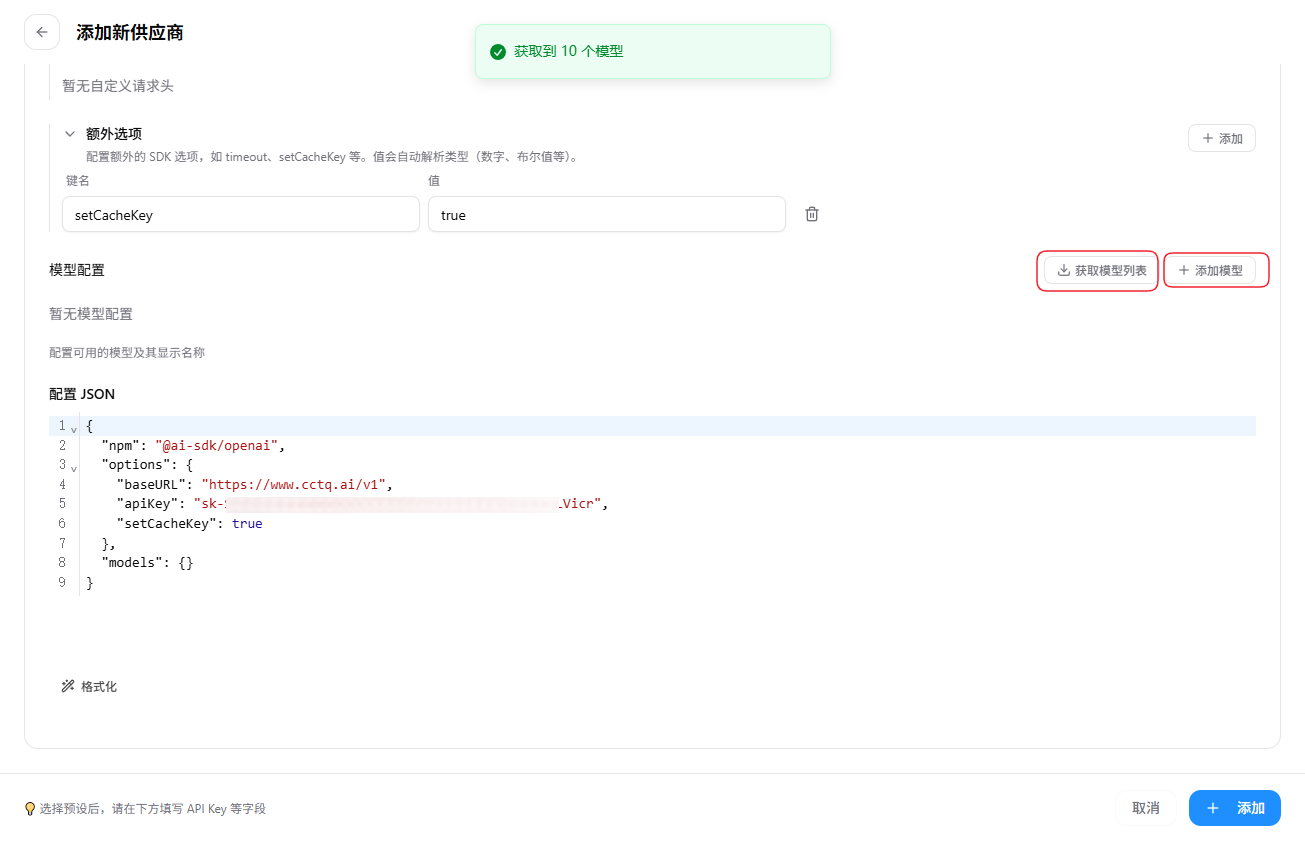
First click "Fetch model list" to pull them automatically, then click "+ Add model" to add the ones you need.
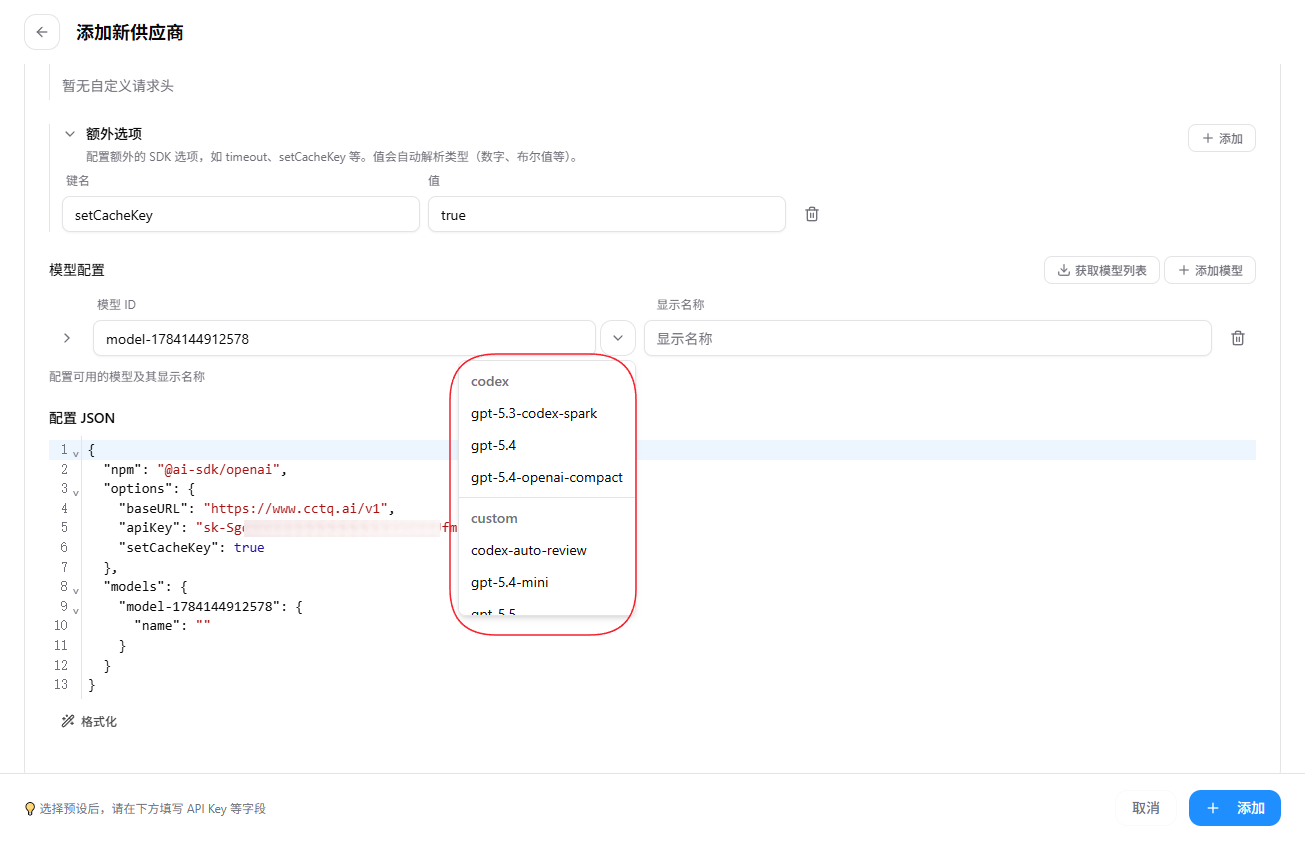
In the "Model ID" dropdown, pick the model you want (e.g. gpt-5.6-sol).
TIP
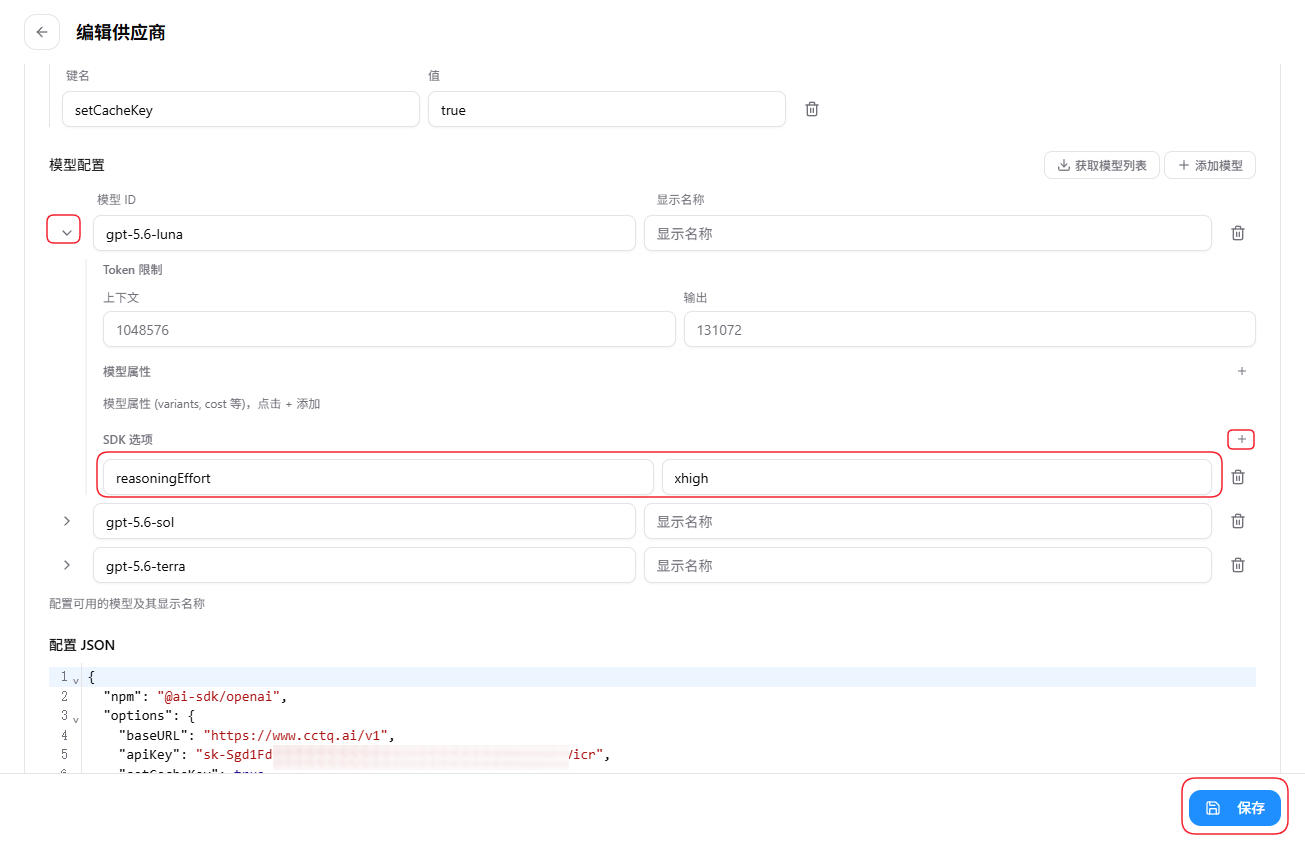
To set reasoning effort, context window, and similar for a model, expand it and add them under "SDK options" (e.g. reasoningEffort = xhigh).
When done, click "Save" in the bottom-right.
4. Pick a model and chat
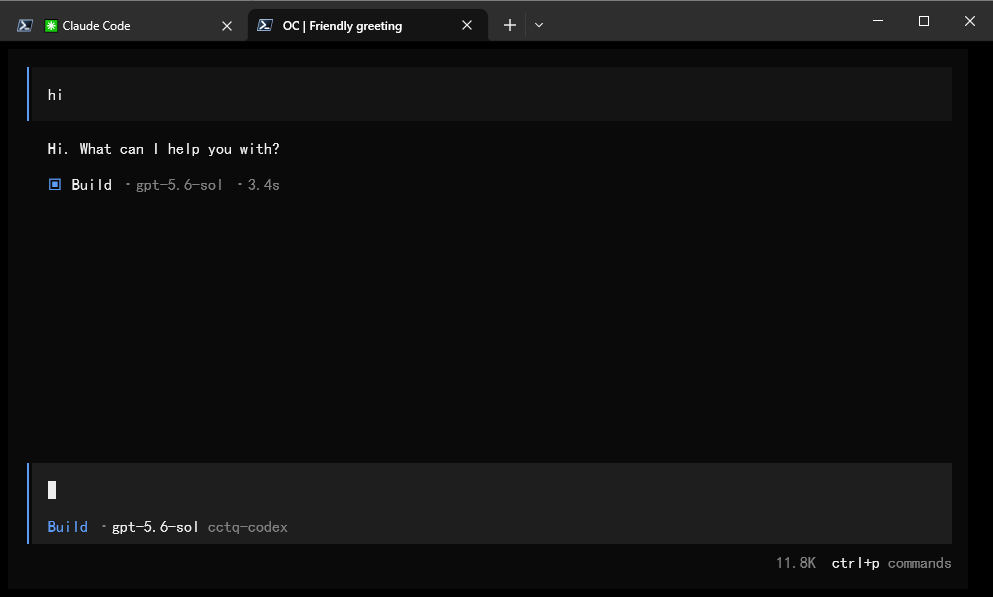
Open OpenCode, and in Select model, pick the model you just added under the cctq-codex group (e.g. gpt-5.6-sol).
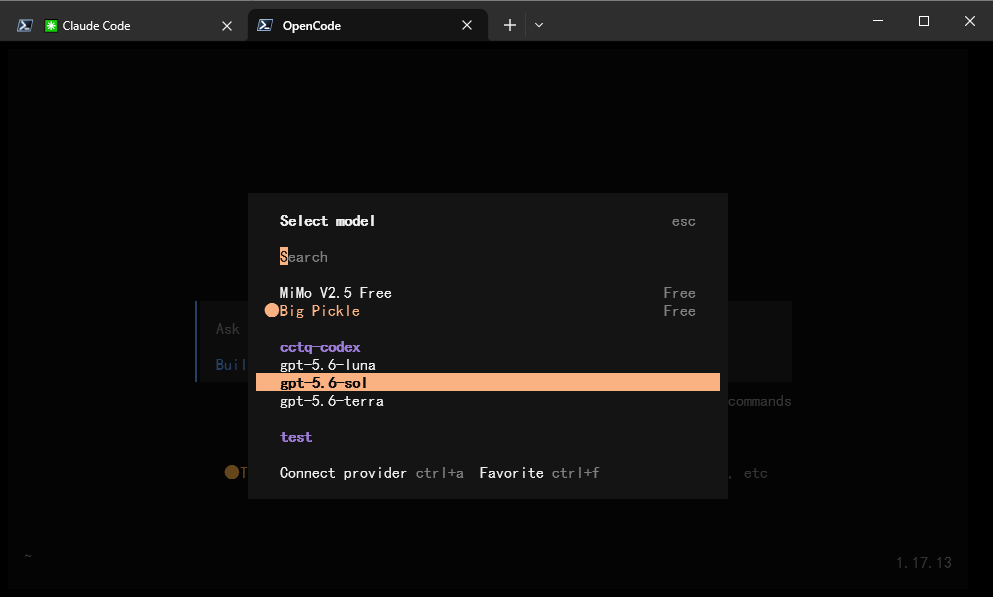
Send any message (e.g. hi) — a normal reply means the setup succeeded.