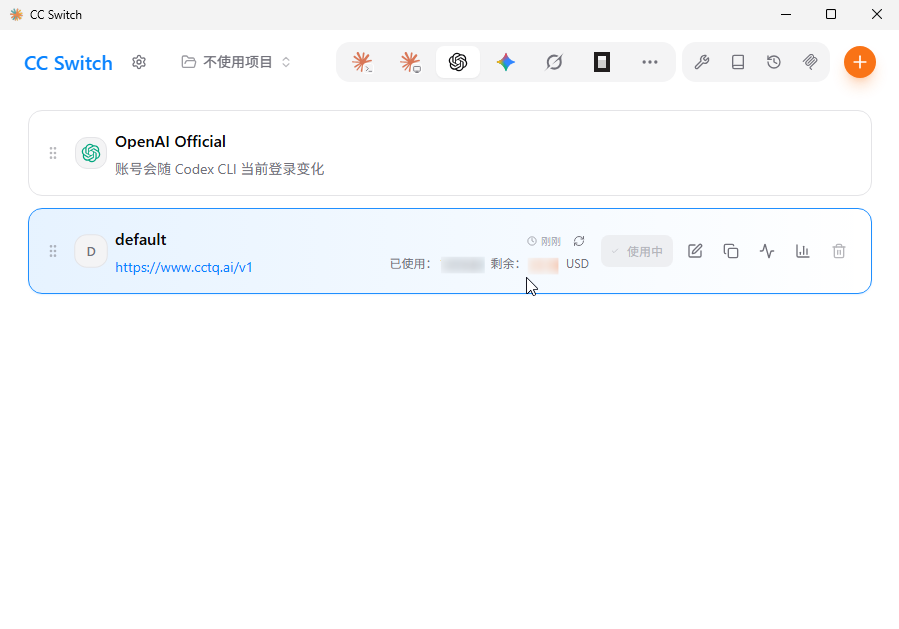
CC-Switch Balance Query
Complete CC-Switch Setup and add your CCTQ provider first. This guide uses a version of CC-Switch with the NewAPI preset.
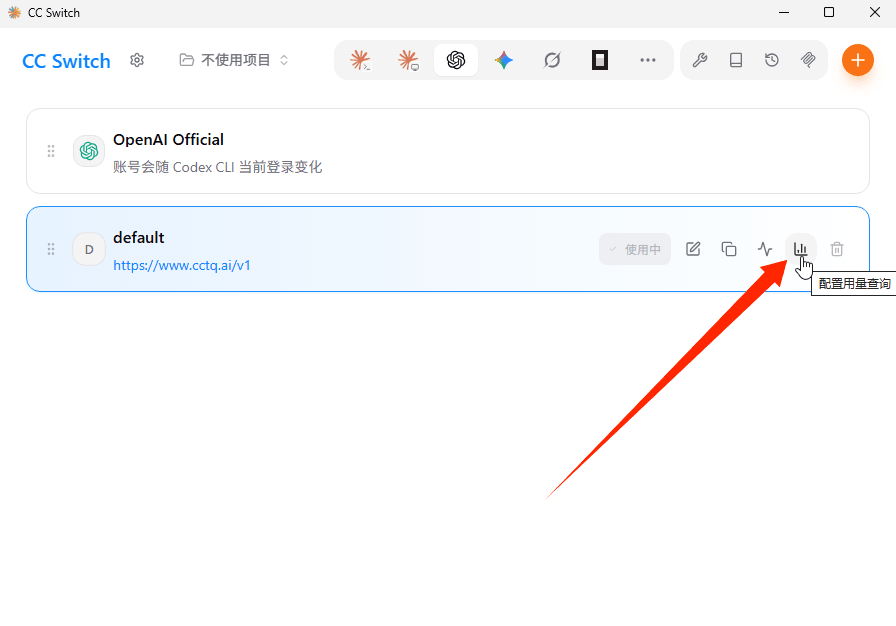
1. Open usage query settings
Find your CCTQ provider and click the chart icon (Usage Query) on the right.
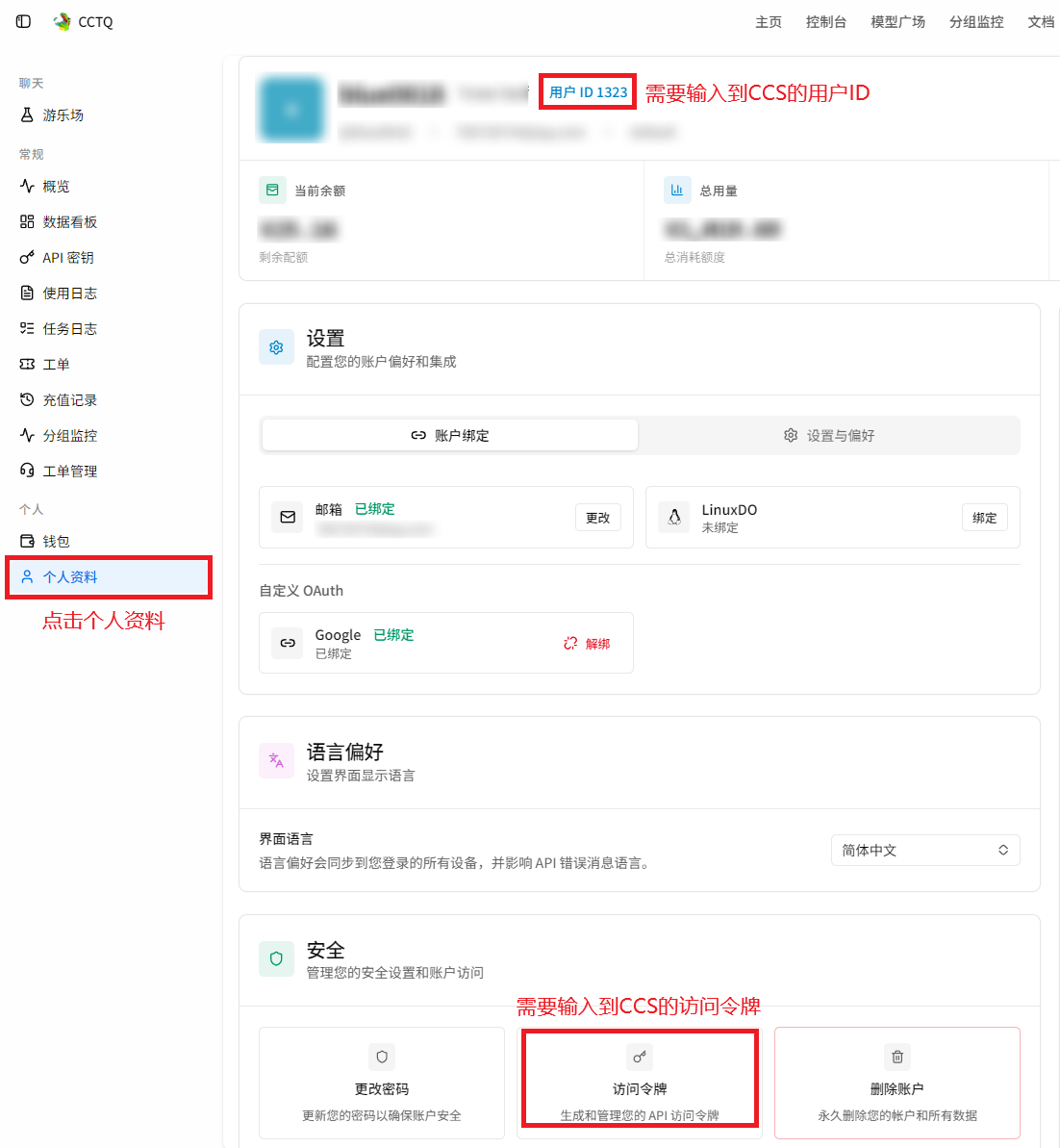
2. Get your user ID and access token
Sign in to CCTQ and open Personal Profile in the left sidebar. Note your User ID at the top, then click Access Token in the Security section below to get your token.
TIP
Use the Access Token from your profile, not a model API key from API Keys. Enter your own user ID; the screenshots are examples. Keep your access token private.
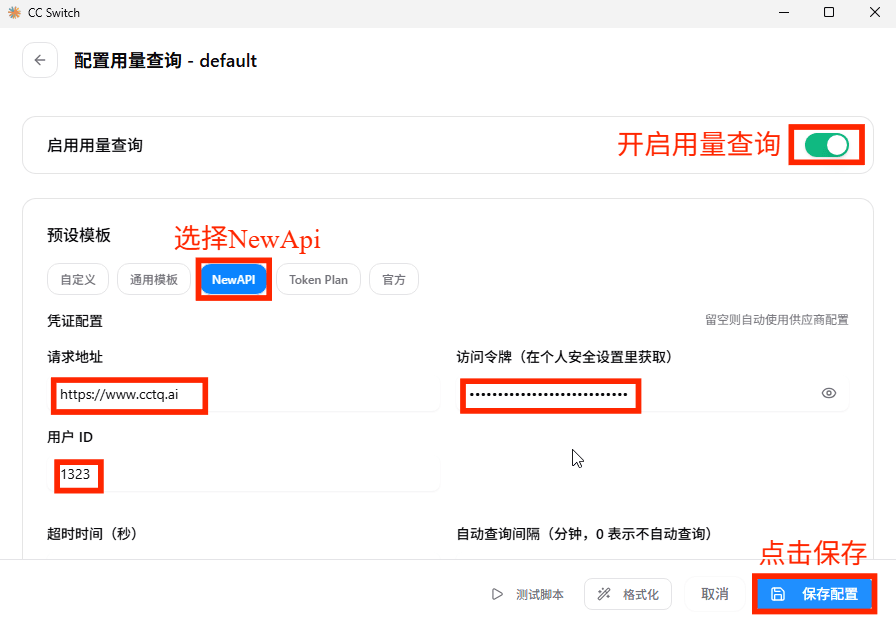
3. Fill in the query settings
Turn on Enable Usage Query, select the NewAPI preset, and enter:
| Setting | Value |
|---|---|
| Base URL | https://www.cctq.ai, without /v1 |
| Access Token | The access token from step 2 |
| User ID | The user ID from step 2 |
Click Save Configuration. You can also click Test Script to check the result before saving.
Auto Query Interval is measured in minutes. Set it to 0 to disable automatic queries.
4. Check your balance
Return to the main screen. After a successful query, the provider card shows the used and remaining balance. Click the refresh icon to update it manually. Automatic queries only run while this provider is active.